Ghost
Learn how to embed PuzzleMe puzzles in Ghost pages.
Embedding your puzzle in Ghost
If you're using Ghost to build or publish posts, you can easily embed any puzzles directly onto your pages.
Currently, PuzzleMe supports two types of web embeds for integrating puzzles: JS-embed and iframe embed. You can use either of the embed types in your Ghost page. We recommend using JS-embed, as that gives the best user experience.
Please note that while integrating puzzles in your Ghost page, the page editor preview won't show you the rendered puzzle; instead, it will just show a placeholder with or without a message.
You have to view your Ghost page outside of the editor to see and interact with the puzzle.
Step-by-step instructions
Option A: Iframe embed
If you are planning to use iframe embed, then follow the below steps:
Open the page from your Ghost dashboard where you plan to integrate the puzzle.
Insert a new line, and then click on the plus icon that appears to the left of that line.
This will open a list of items that you can insert into your page; from there, scroll down and select the option for HTML.
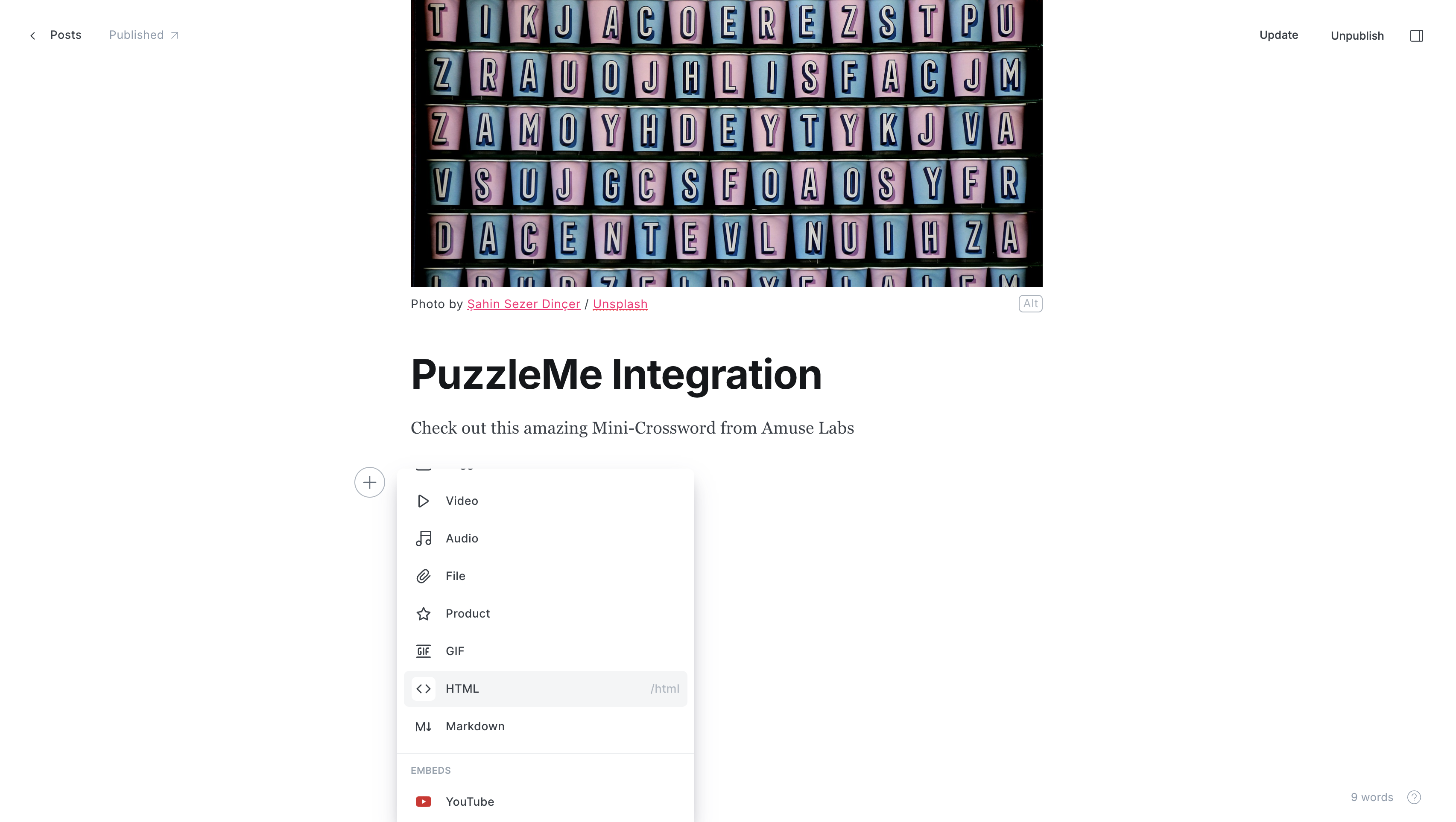
HTML insertion option in Ghost After clicking on HTML, a code area will appear; paste your PuzzleMe iframe embed code there and click enter.
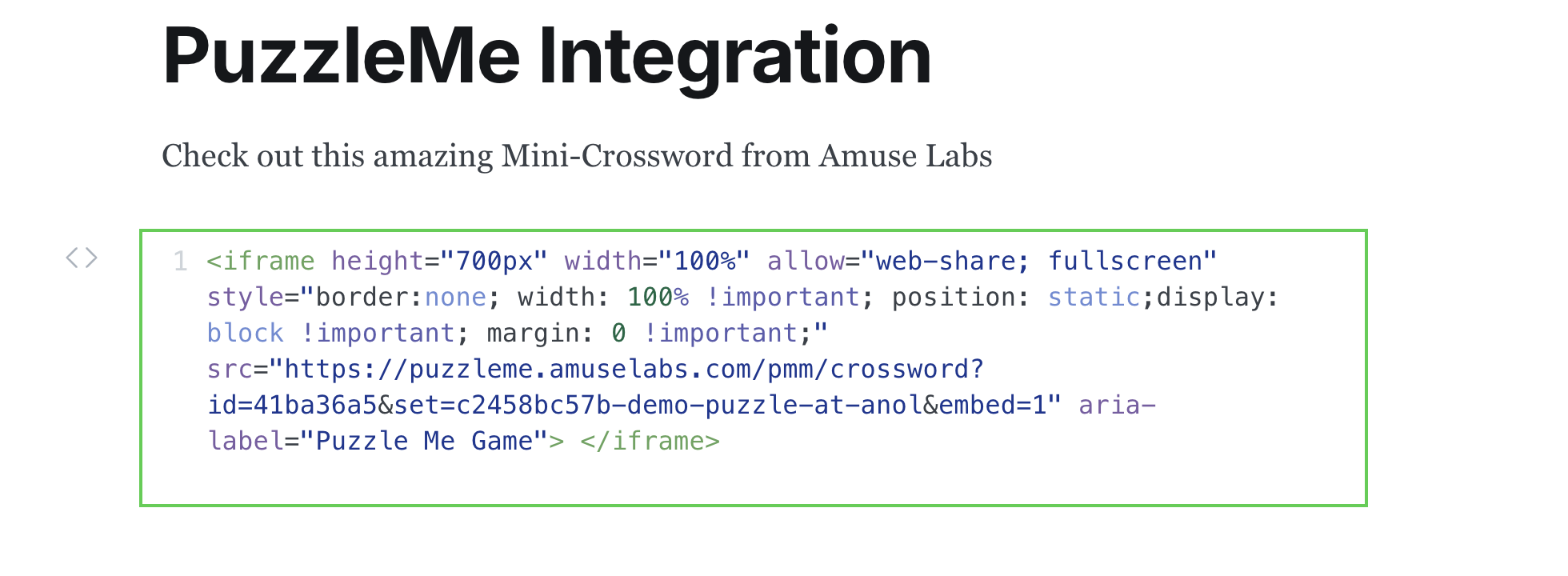
Paste the puzzle iframe code in the placeholder box and click enter 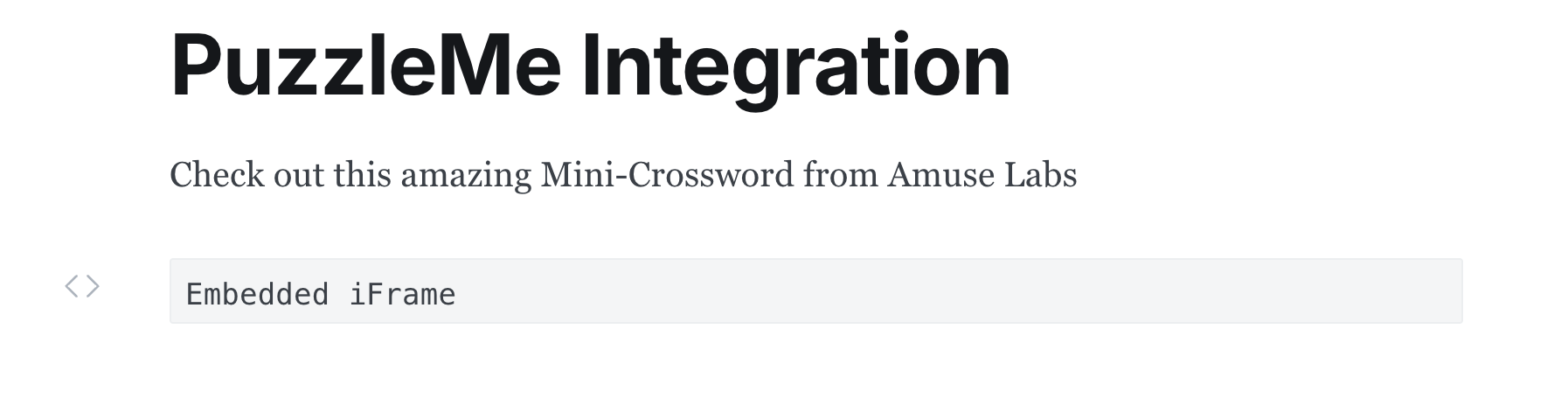
Now the line in your page should look like this. After this, click on Update at the top right corner of the page to apply and save your changes.
Then you can visit the published page to view and interact with the puzzle.
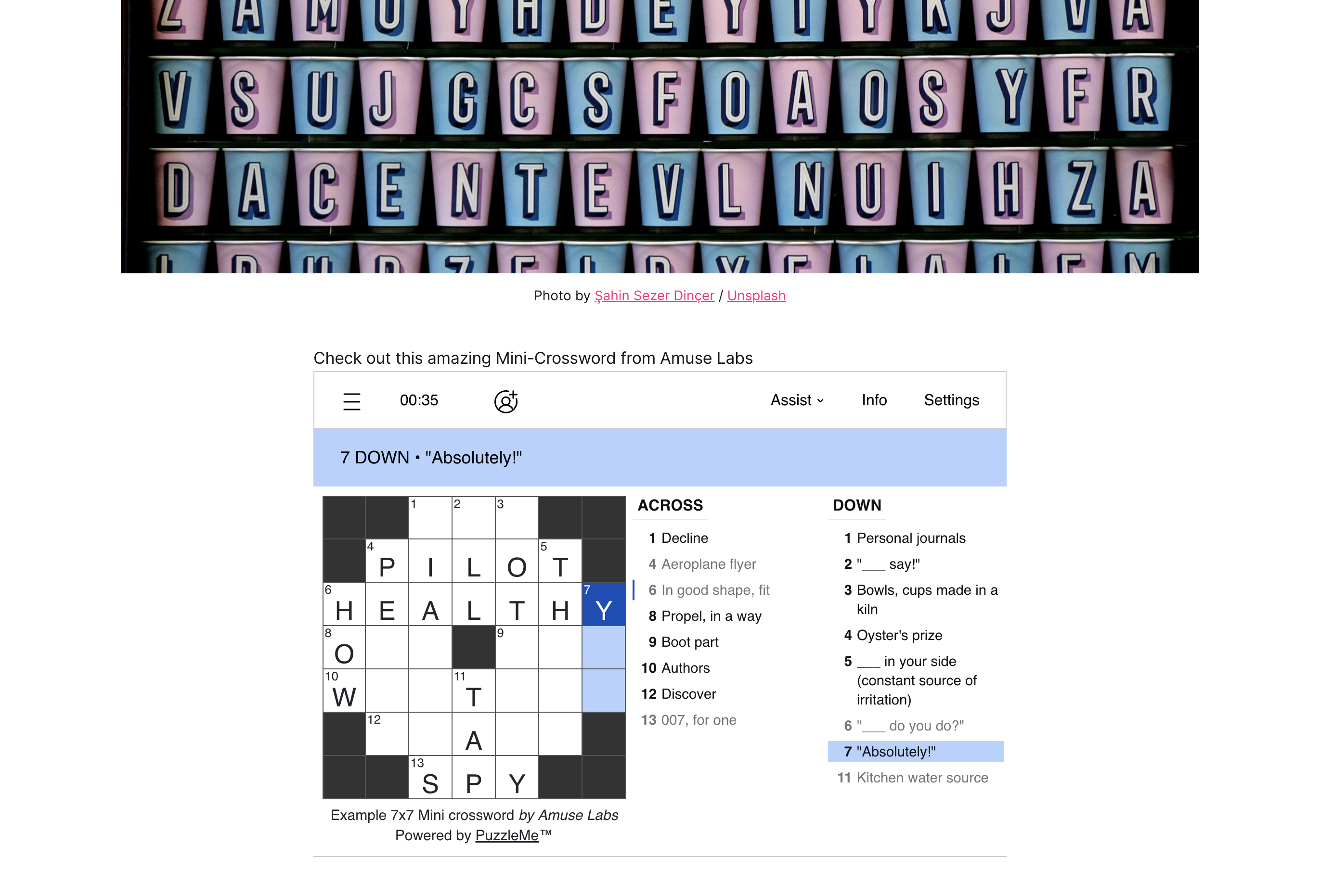
The puzzle view from the published page
Option B: JS-embed
If you're trying to integrate puzzles using PuzzleMe JS-embed in your Ghost page, then there are a few extra steps that you have to follow.
Unlike iframe embed, PuzzleMe JS-embed loads certain scripts in the page to dynamically render the puzzle; because of that, you can't directly copy and paste the JS-embed code from the PuzzleMe publish page to your Ghost page.
You need to manually separate the three <script> tags and the <div> tag from the JS-embed code.
Now in your Ghost page editor, open the right panel, scroll down, and click on Code Injection.
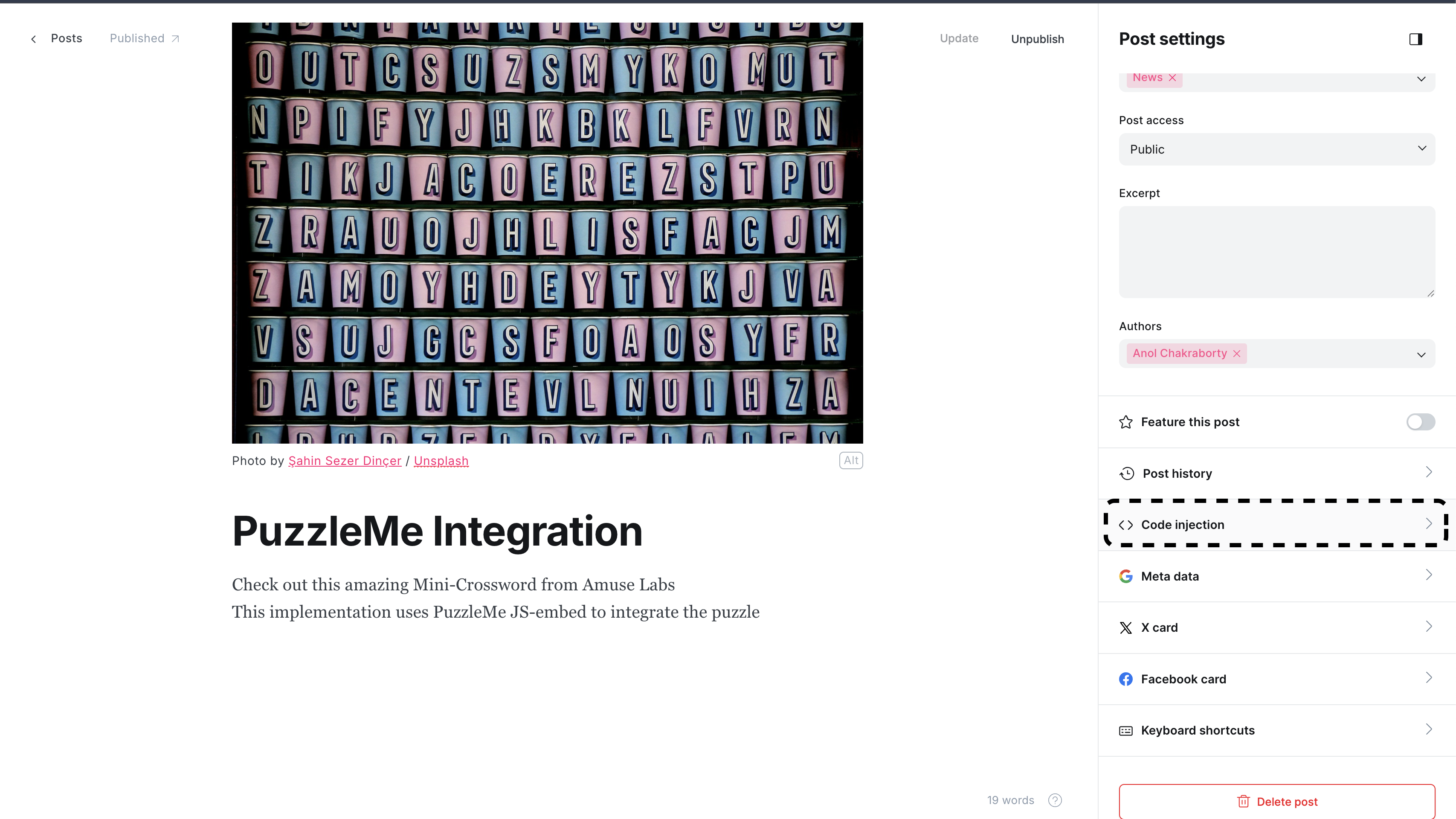
Code Injection in Ghost After clicking on Code Injection, a new view will appear, and you will notice two input areas titled
Post headerandPost footer.Paste the three
<script>tags from your JS-embed code into the Post header area. You will find the JS-embed code on your puzzle publish page.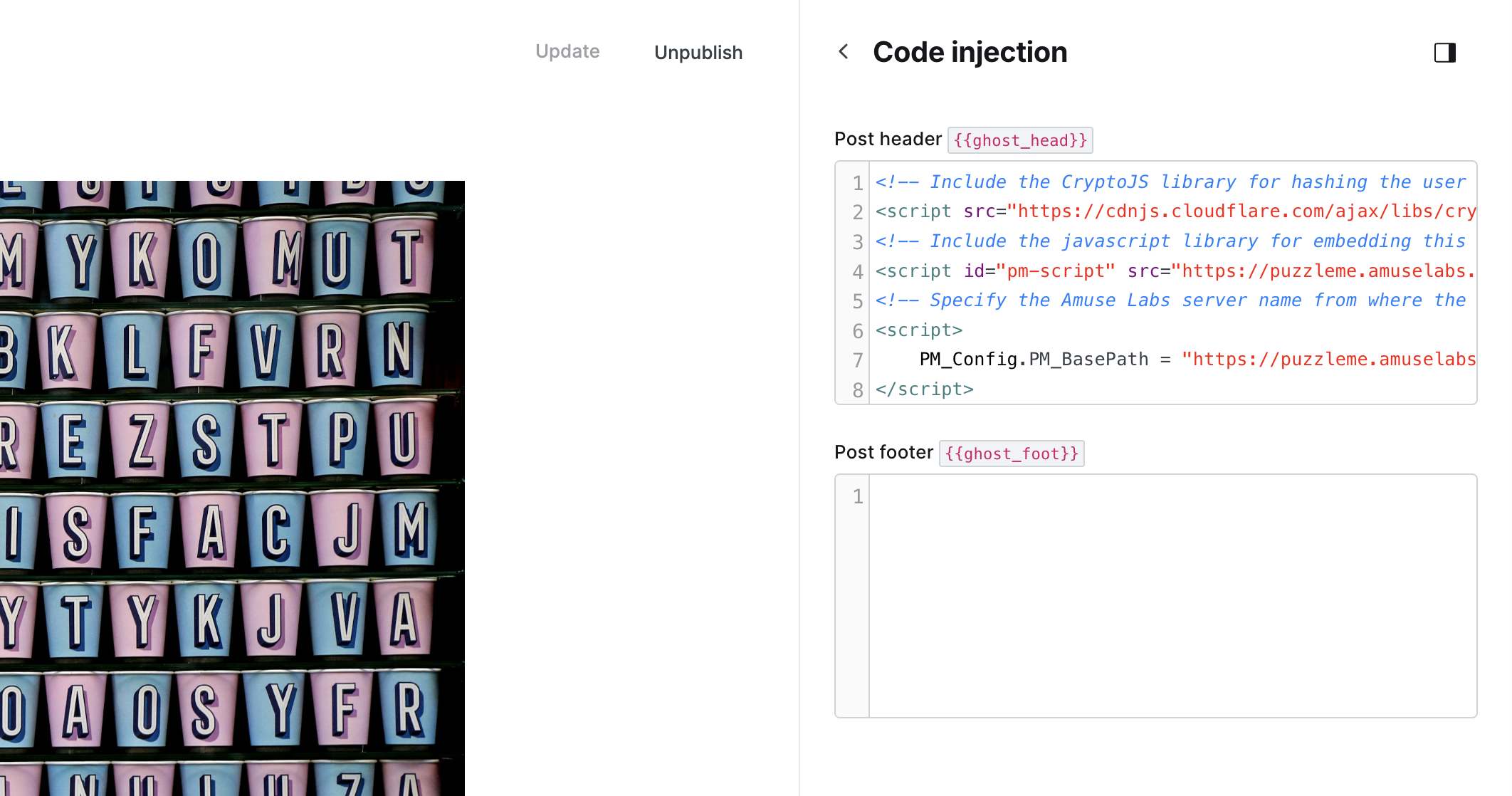
Post header area in Ghost under code injection After completing the step above, you still need to insert the remaining
<div>tag from the puzzle JS-embed code into your Ghost page. For that, please follow steps 2, 3 and 4 as described in the iframe embed section above.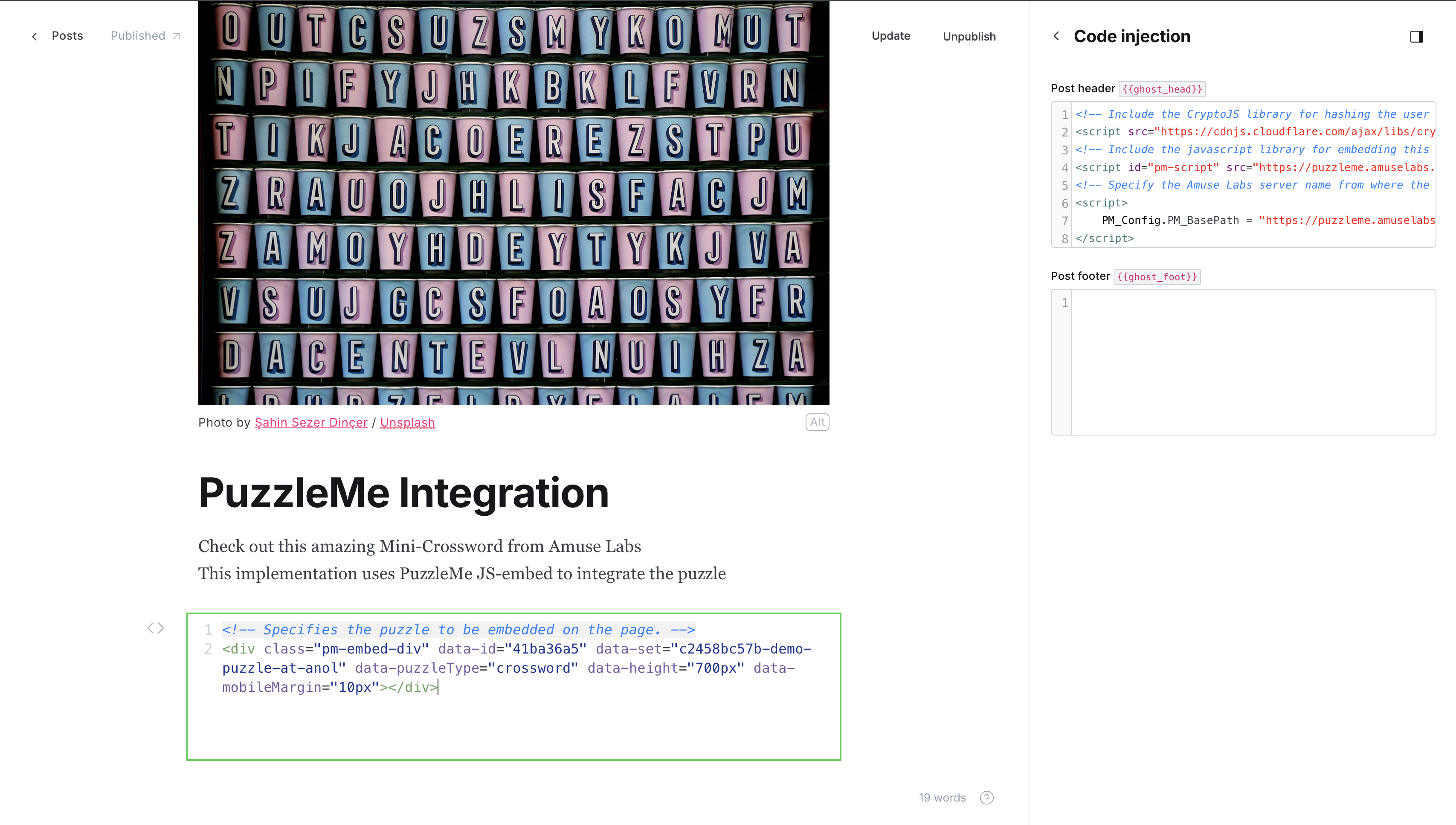
After inserting the <div>tag into your Ghost Page, your final editorial setup should look like this.At last, click on Update, and open the published page to view and interact with the puzzle.
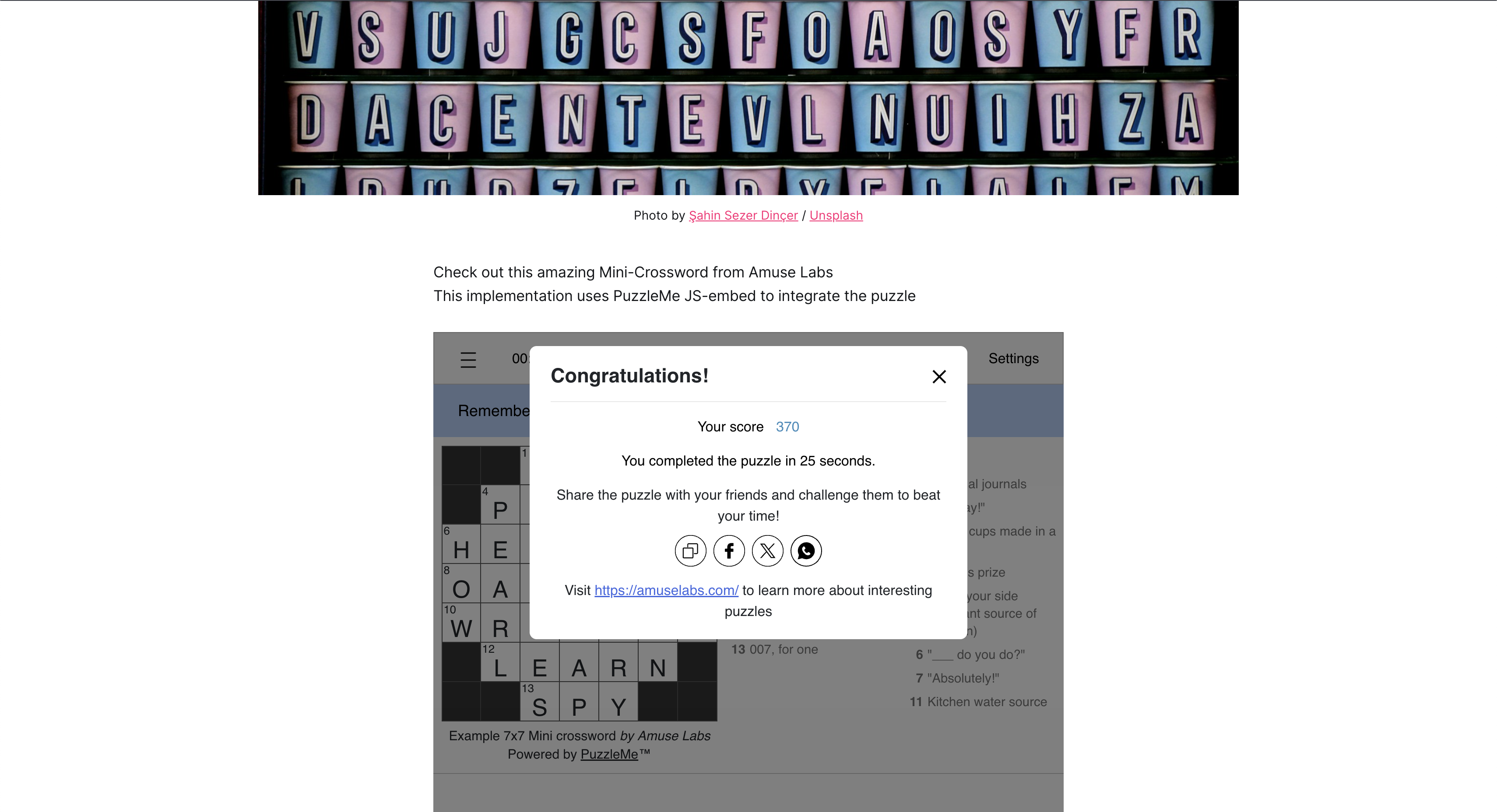
The puzzle view from the published page