Using puzzles with Slack
Understand how to share puzzles in your Slack workspace.
Video guide
Install the PuzzleMe™ app for Slack
- Make sure you are logged in to your Slack workspace in the same browser.
- Click on this link and select the Slack workspace where you want to install the PuzzleMe app for Slack.
- Slack will ask your permission to add the app to your Slack workspace.
- Click Allow to install the app to your workspace.
- Under the Apps section in your Slack app, you will find Daily Puzzles & Games by PuzzleMe. You can also click on the app's name for usage instructions, or simply follow the steps below.
How to share a puzzle in Slack
- Log in to your PuzzleMe account and create the game you want to play with your teammates on Slack.
- Go to the Publish page for your puzzle, click on the Slack option, and copy the message.
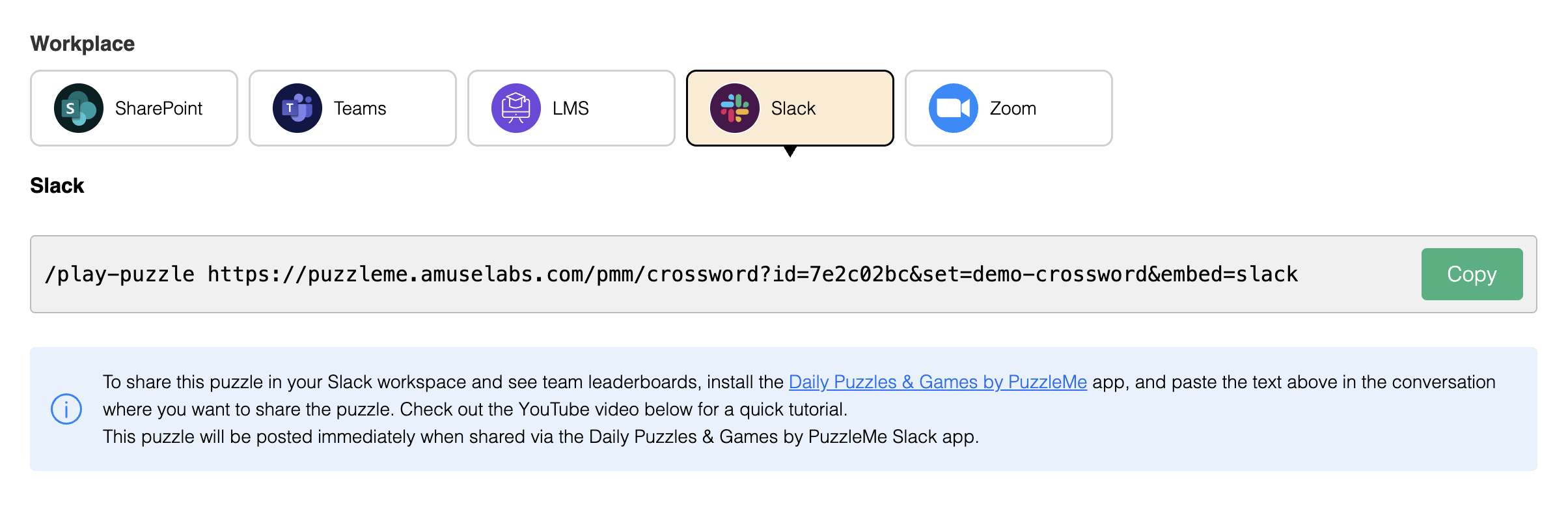
- Go to the channel or DM where you want to share the puzzle, and paste the message copied in the last step. For example
/play-puzzle https://puzzleme.amuselabs.com/pmm/crossword?id=17b356c8&set=demo
Depending on the publish status of your puzzle:
- Published puzzles will be posted immediately in Slack.
- Unpublished puzzles will be scheduled to post at their publish time.
- The puzzle preview will now be shown in the conversation.
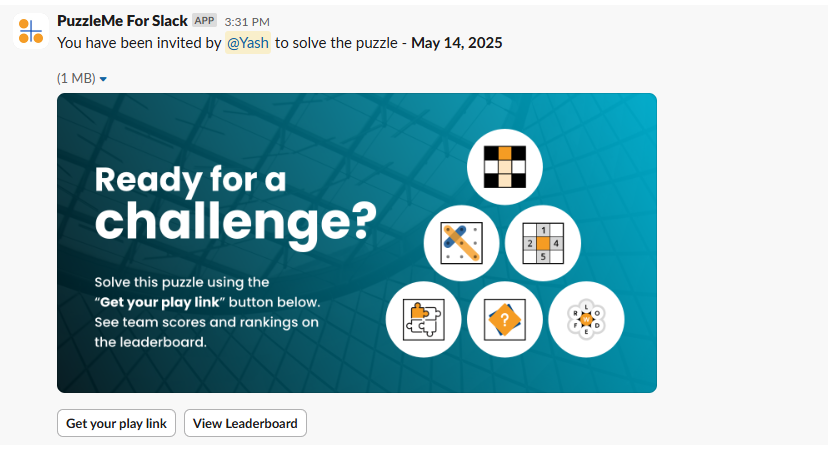
Scheduling puzzles for future
Scheduling puzzles in Slack is available only on our Professional and Enterprise plans.
PuzzleMe allows you to schedule puzzles to be posted in Slack automatically for future dates. You can currently schedule puzzles in any public Slack channels where the "Daily Puzzles & Games by PuzzleMe" app has been added. To add the app, click on: View all members -> Integrations -> Add an app -> Daily Puzzles & Games by PuzzleMe. Puzzles can be scheduled to be posted up to 120 days in advance.
To schedule puzzles into the future:
- Set the publication time of the puzzle in the future.
- Copy the message from the Slack option on the Publish page, and paste it into the Slack channel.
- When you paste this message into Slack, the PuzzleMe app will schedule the puzzle to be posted at the specified time instead of posting it immediately. You will get notified of the date and the time when the puzzle will be posted.

- You can view or cancel the scheduled puzzles any time from the Home tab of your Slack app.
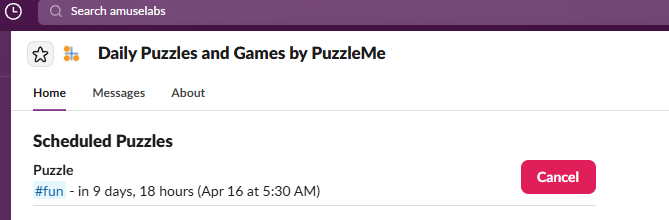
Make sure your puzzle’s publish time is set to the future before copying the Slack message, else the puzzle will be posted immediately!
How to solve a puzzle
- Click on the 'Get your play link' button.
- You will receive a message (only visible to you) that looks like this.
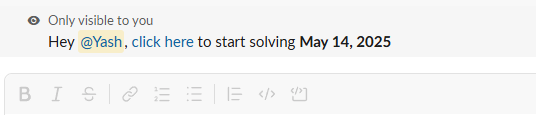
- Click on the link. The puzzle will open in your browser for you to start solving. Once you finish the puzzle, your position will automatically start appearing in the leaderboard. Happy puzzling!
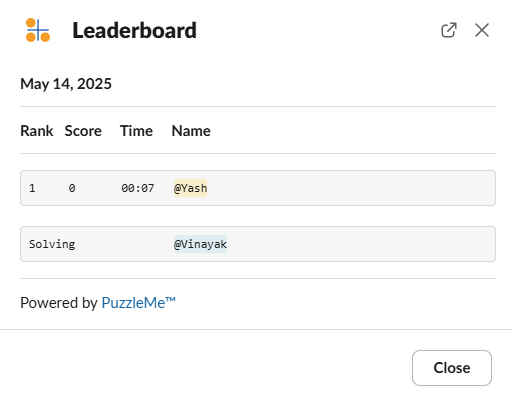
How to view the leaderboard
Click on the 'View leaderboard' button where a puzzle is posted. The leaderboard will open. Wait for a few seconds for the leaderboard to be populated with the top performers.
Troubleshooting Tips
- Command Not Working? Ensure the "Daily Puzzles & Games by PuzzleMe" app is installed in the workspace and verify that the message starts with
/play-puzzle, followed by a space, and then a valid puzzle link. - Preview Not Appearing? Double-check that you copied the correct message from the publish page under Slack option. Wait a few moments, as sometimes there's a slight delay.
- Where can I post puzzles? You can post puzzles in public channels, private channels, direct messages, and group DMs. You can schedule future puzzles in any public channels where the "Daily Puzzles & Games by PuzzleMe" app has been added.