PuzzleMe for Zoom
The PuzzleMe for Zoom app lets you host and play collaborative PuzzleMe games directly inside your Zoom meetings. Only the meeting host needs to install the app. Participants can join through Zoom's Collaborate Mode without installing anything.
Quick Start
- Host installs PuzzleMe for Zoom from the Zoom Marketplace.
- In a meeting, host opens the app from the Zoom Apps menu.
- Click Create Puzzle, paste a puzzle link from your PuzzleMe account's Publish page and click "Start Puzzle".
- Participants join via Zoom's Collaborate Mode prompt — no installation needed.
- Play together, view live progress, and see the final leaderboard when the host ends the puzzle.
Video guide
Installing the app
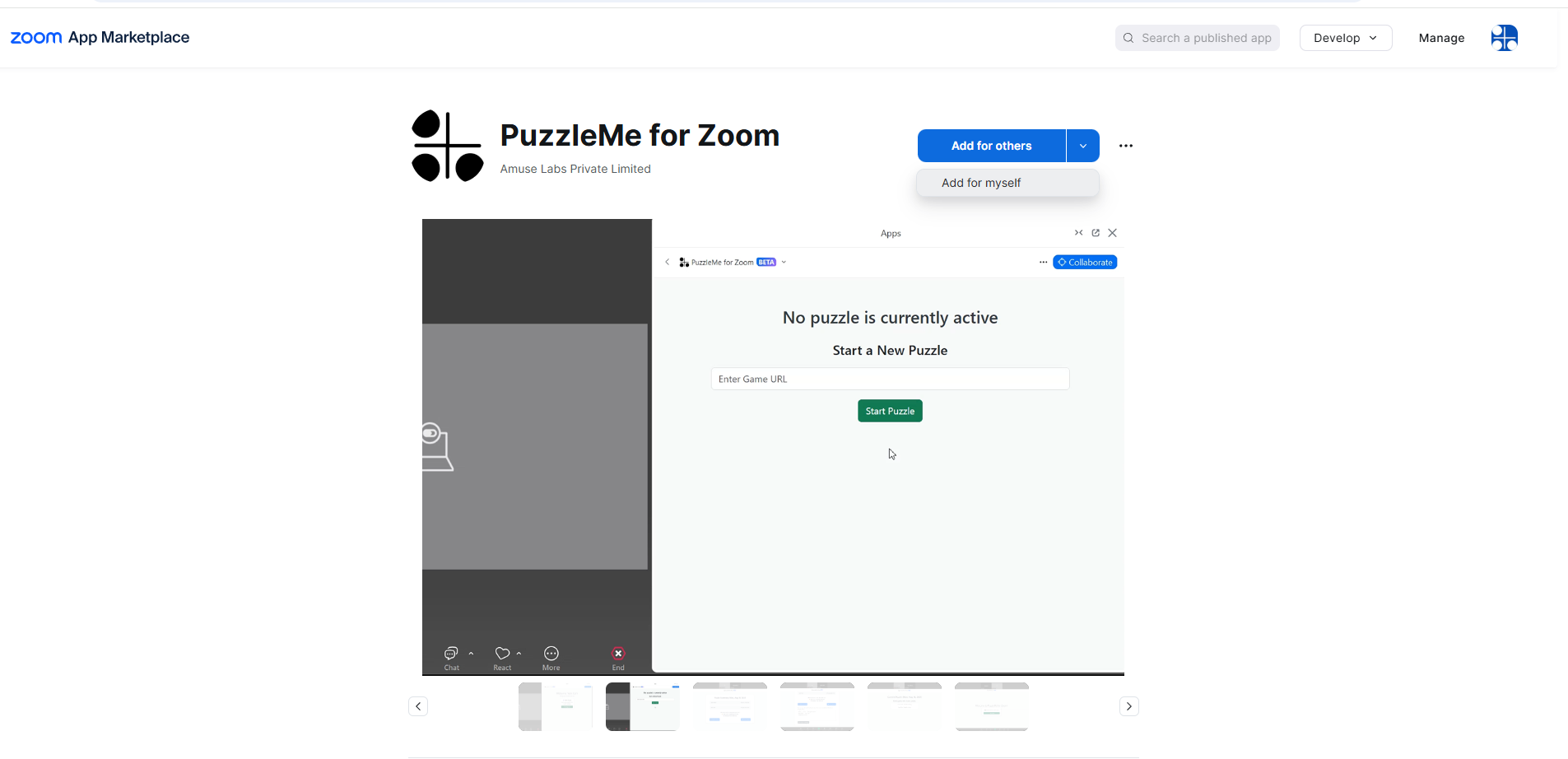
To install the app to your Zoom account, search "PuzzleMe for Zoom" on the Zoom App Marketplace, and click on the "Add for Myself" button. Alternatively, you can also click here to start the installation process. Zoom may ask you to log in again on the browser where you open this link.
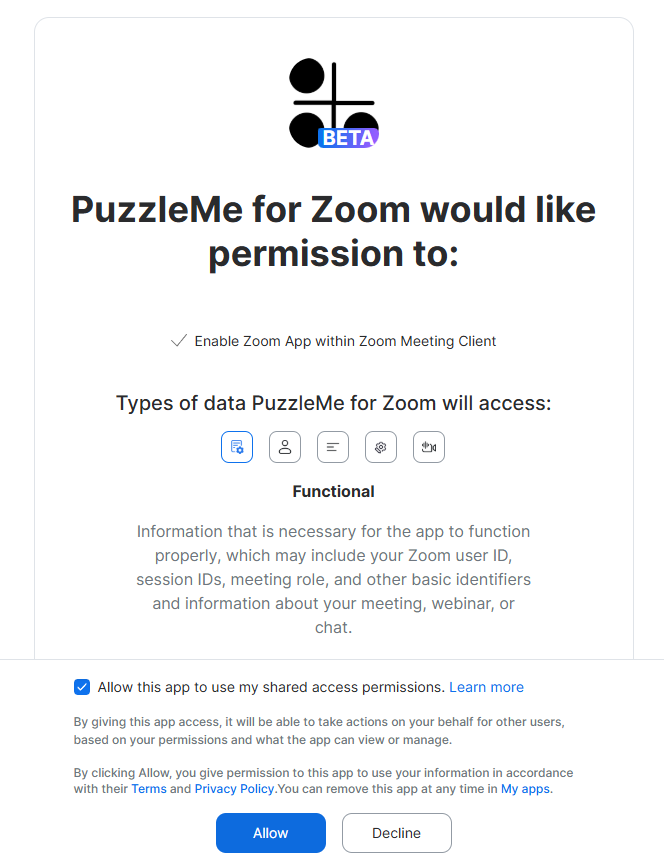
Zoom will now ask you for permission to install the app in your account. Select the "Allow this app to use my shared access permissions." checkbox, and click "Allow".
The app will now be installed on your Zoom account.
Using the app
Starting a puzzle (Host)
- Start a Zoom meeting as the host.
- Click on the "More" option with the 3 dots, present at the bottom of your Zoom desktop client.
- In the menu that pops up, select Apps > PuzzleMe for Zoom. This will open the PuzzleMe for Zoom app in a sidebar.
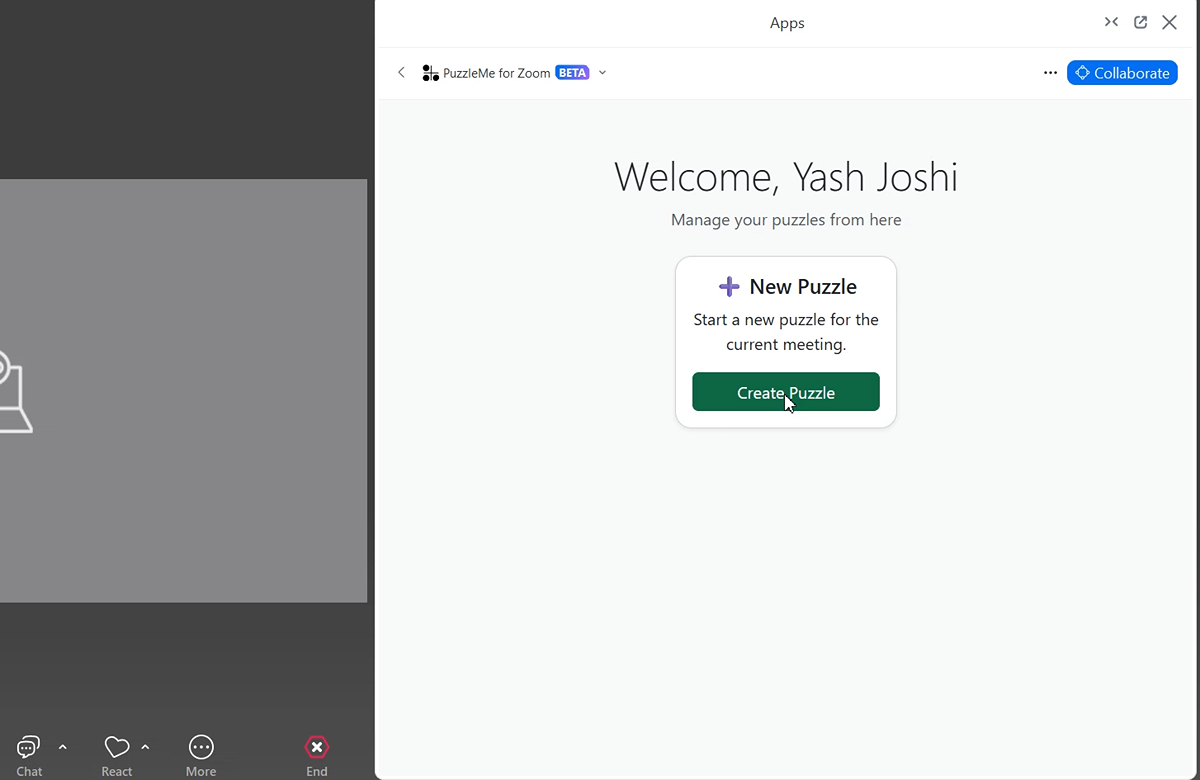
- Click Create Puzzle.
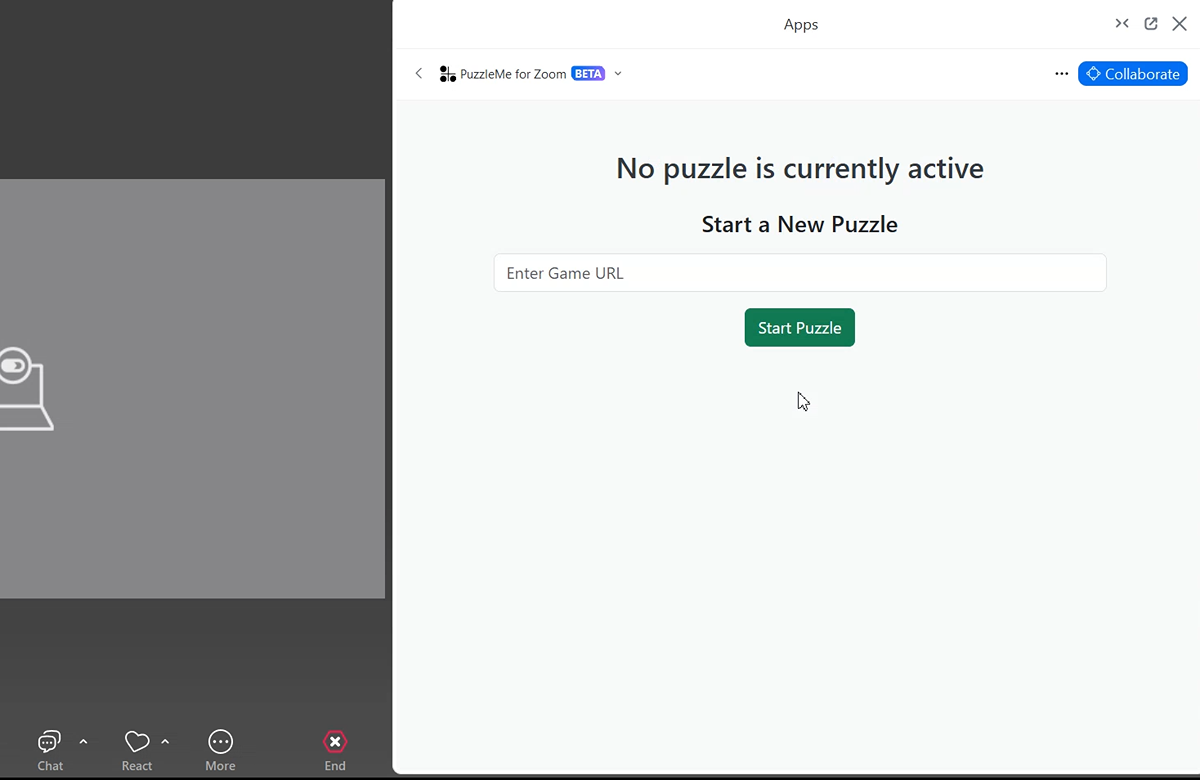
- When prompted, paste a puzzle link from the Publish page of your PuzzleMe account, and click on "Start Puzzle". All non-contest mode puzzle types are supported.
- If the link is valid, the collaborative solving session will begin.
- Zoom will prompt participants to join the puzzle via Collaborate Mode.
Joining a puzzle (Participants)
- When the host starts a puzzle, Zoom will show a prompt inviting you to join.
- Click Join to open the PuzzleMe for Zoom app in your Zoom client.
- On the landing screen, you will be able to see the title of the puzzle. Click Start Solving to begin solving the puzzle.
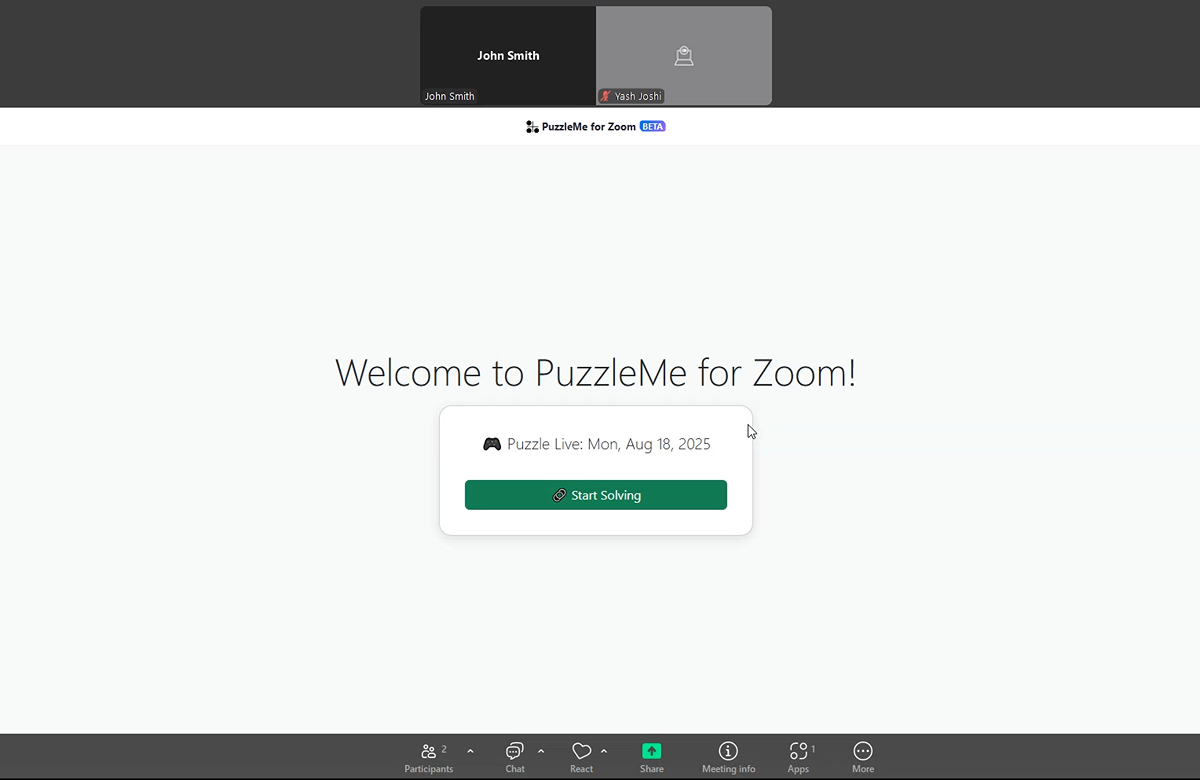
Host View during the puzzle
- The host can see a live-updated list of participants and their progress (started solving/finished solving).
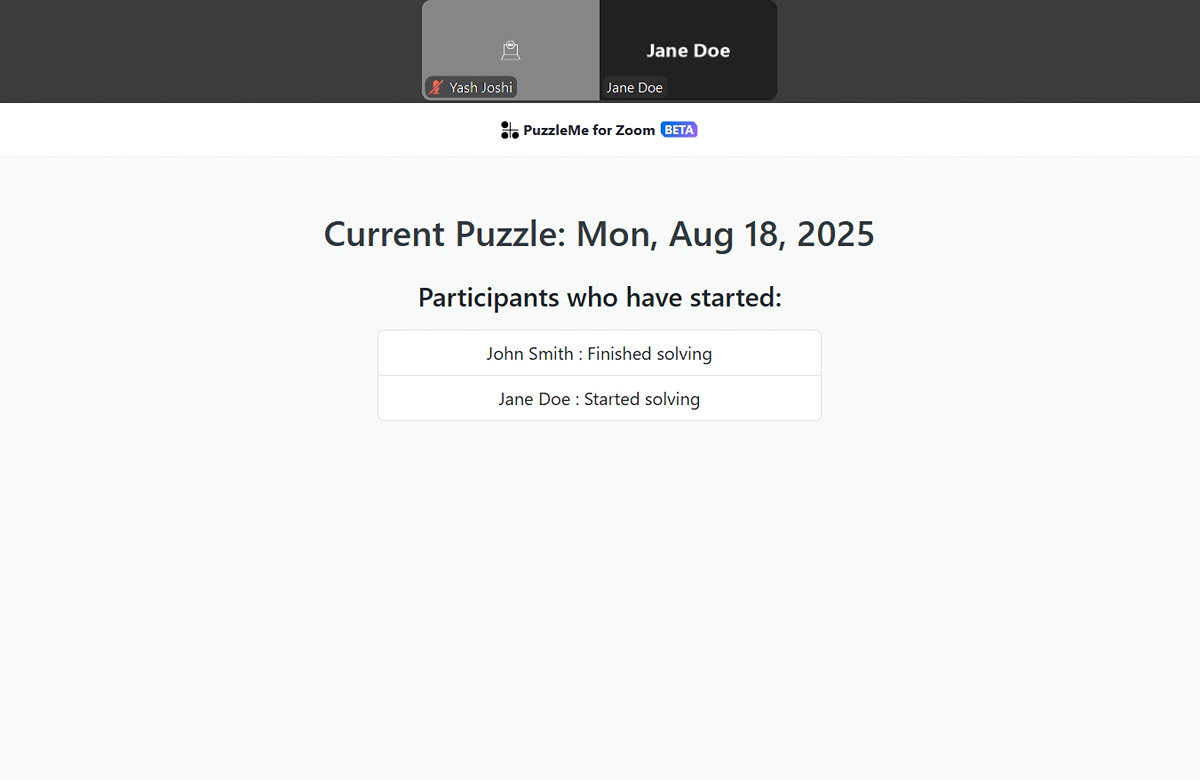
- This progress status is only visible to the host during the puzzle solving session.
Ending the puzzle
- The host clicks End Puzzle at any time. This closes the puzzle for participants who are solving.
- All participants, including the host are redirected to a summary screen showing:
- Fastest solver
- Average time taken
- Other puzzle metrics
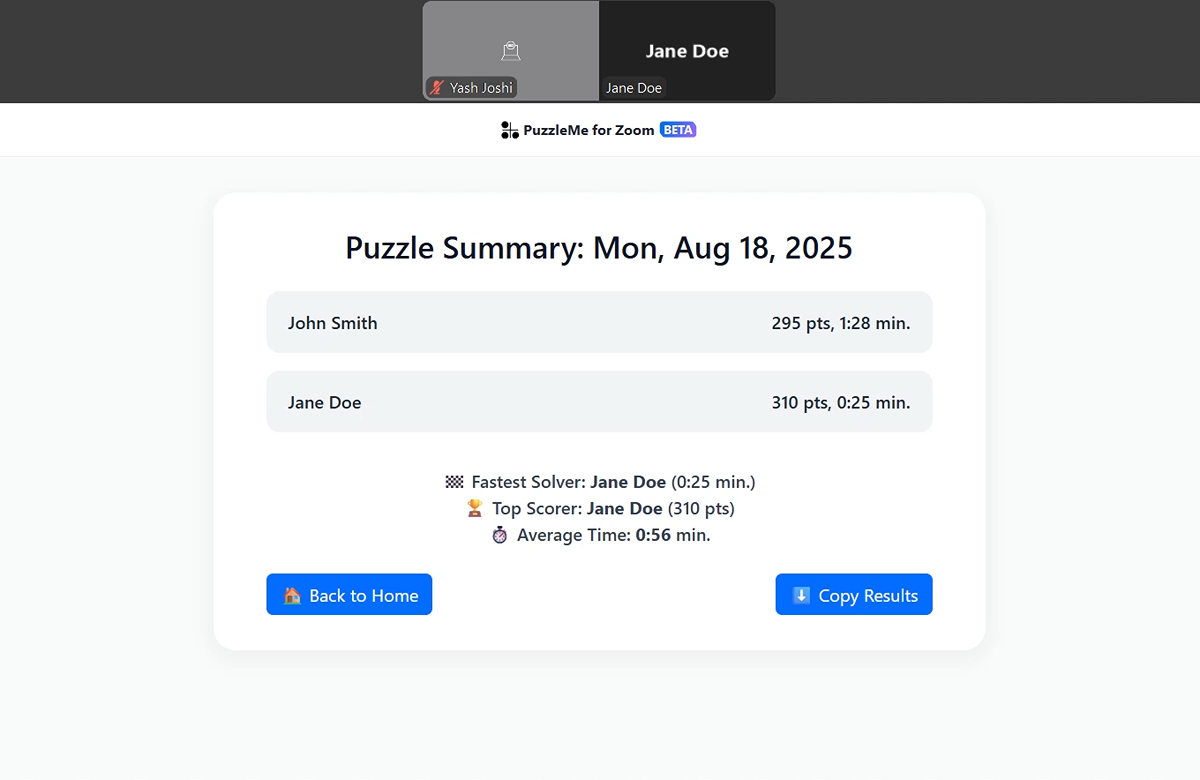
- The host sees the same summary but with an extended leaderboard and a copy to clipboard button for easy export to a spreadsheet.
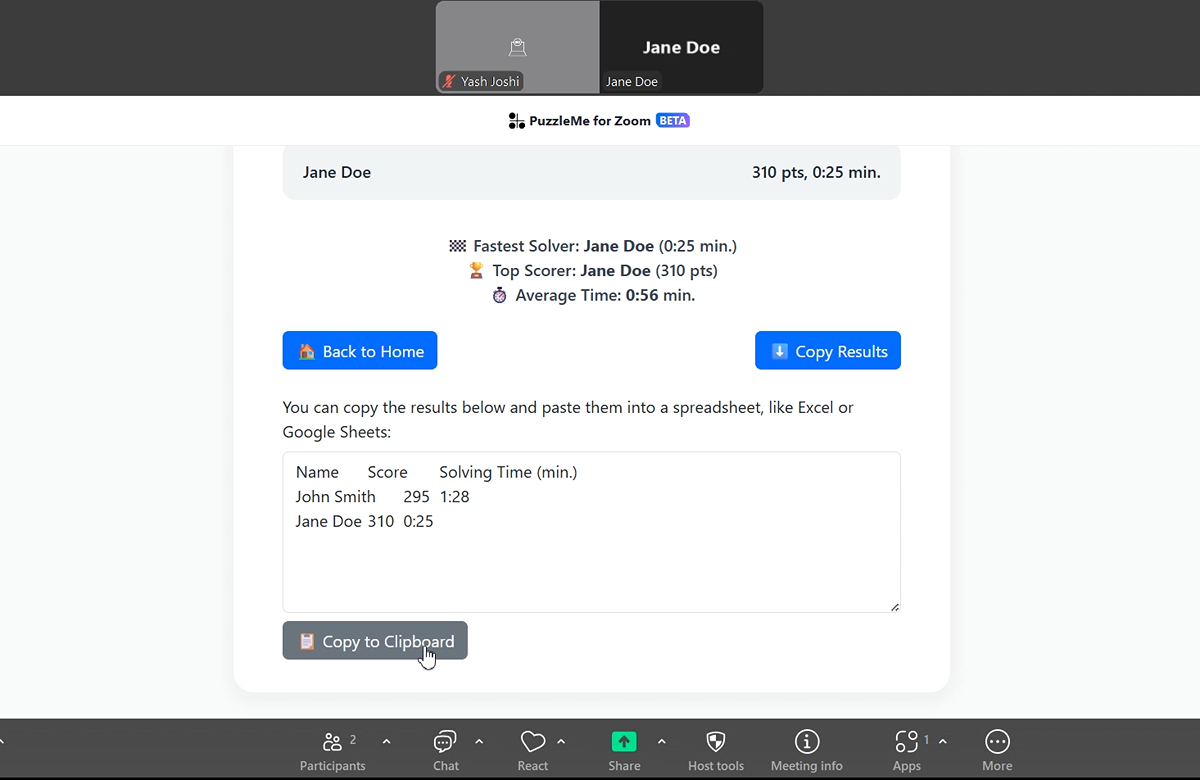
- Once the host clicks on "Back to home", the collaborate session ends for all participants, and the host is returned to the main screen to start a new puzzle.
Removing the app
To remove the PuzzleMe for Zoom app from your account, click here. This will take you to the Zoom marketplace and show all the apps you have added to your account. PuzzleMe for Zoom would be shown in this list of apps.
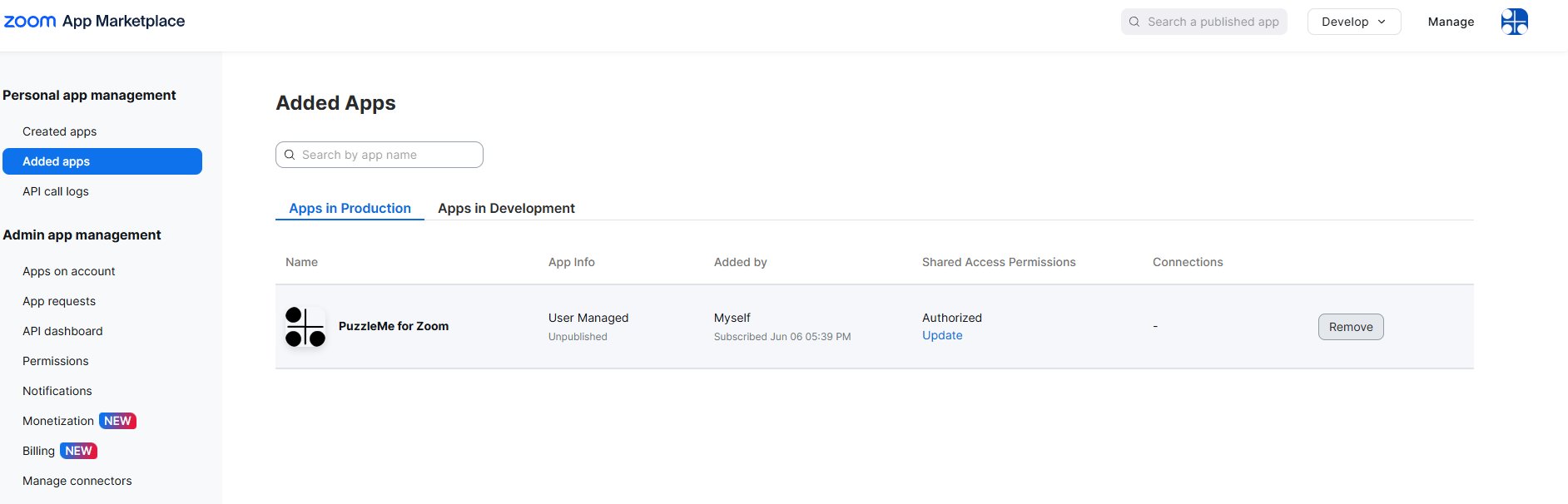
Click the "Remove" button next to the app. Zoom will prompt you and ask you to confirm if you really want to remove the app.
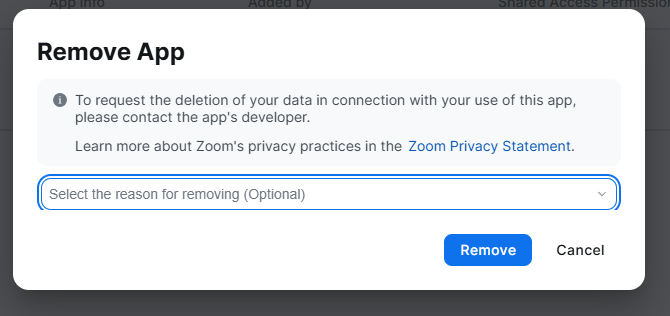
Click on the "Remove" button in the dialog box. PuzzleMe for Zoom will now be uninstalled from your Zoom account.
Please contact us at support@amuselabs.com if you have any questions or other requests.
Tips
- Only the meeting host can start or end a puzzle.
- Ensure you have the correct puzzle link from your PuzzleMe account's Publish page.
- Participants do not need to install the app — joining is handled automatically through Zoom's Collaborate Mode.