Microsoft Teams
Installing the PuzzleMe app
To start using PuzzleMe in Microsoft Teams, you first need to install the app.
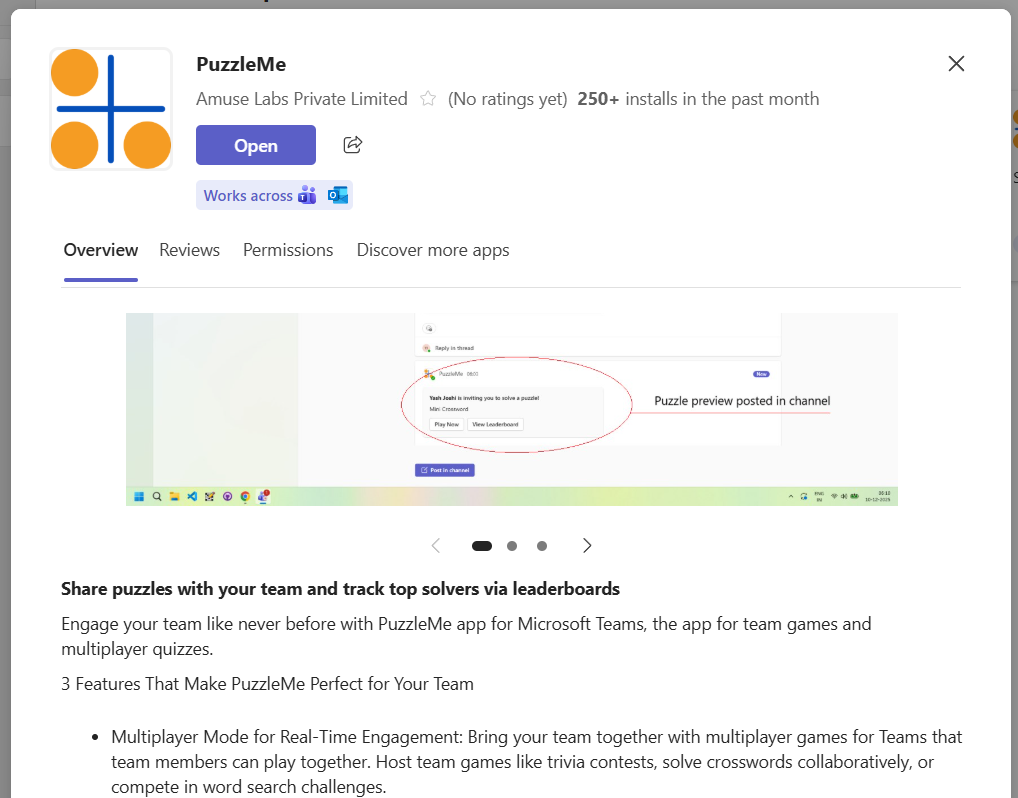
- Open Microsoft Teams.
- Click Apps in the left sidebar.
- Search for PuzzleMe.
- Select the PuzzleMe app.
- Click on the Add button. You might need to authorize PuzzleMe to be able to read basic details (display names) of the members in your team. This permission allows PuzzleMe to display your teammates' names on the leaderboard.
- Choose the team where you want to install the app.
- (Optional): Add the PuzzleMe bot to any public channel in your team. The first time you add the bot to a channel, it will post a welcome message with instructions on how to share puzzles.
Once installed, PuzzleMe will be available in your Teams channels.
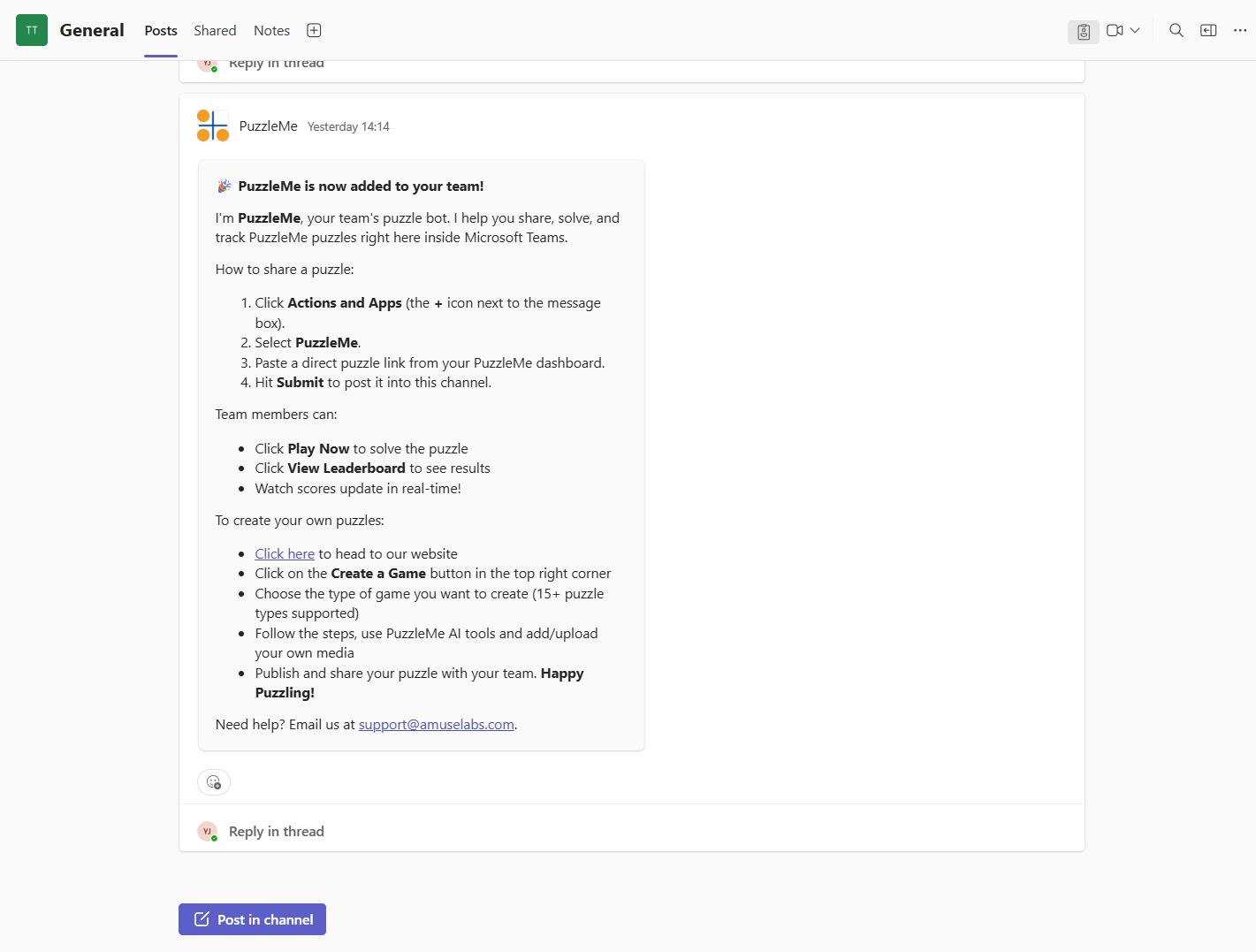
Sharing a puzzle
You can share any PuzzleMe puzzle with your team, in any public channels.
- Open a Teams channel.
- Click Actions and Apps (the + icon next to the message box).
- Select PuzzleMe from the list of apps.
- Paste a puzzle link from your PuzzleMe dashboard.
- Hit Submit to post it into this channel.
The app will post a preview card in the channel, with two buttons:
- Play Now: Your teammates can click Play Now to start solving.
- View Leaderboard: Your teammates can click View Leaderboard to view the progress of team members who have attempted or solved the puzzle so far.
Playing a puzzle
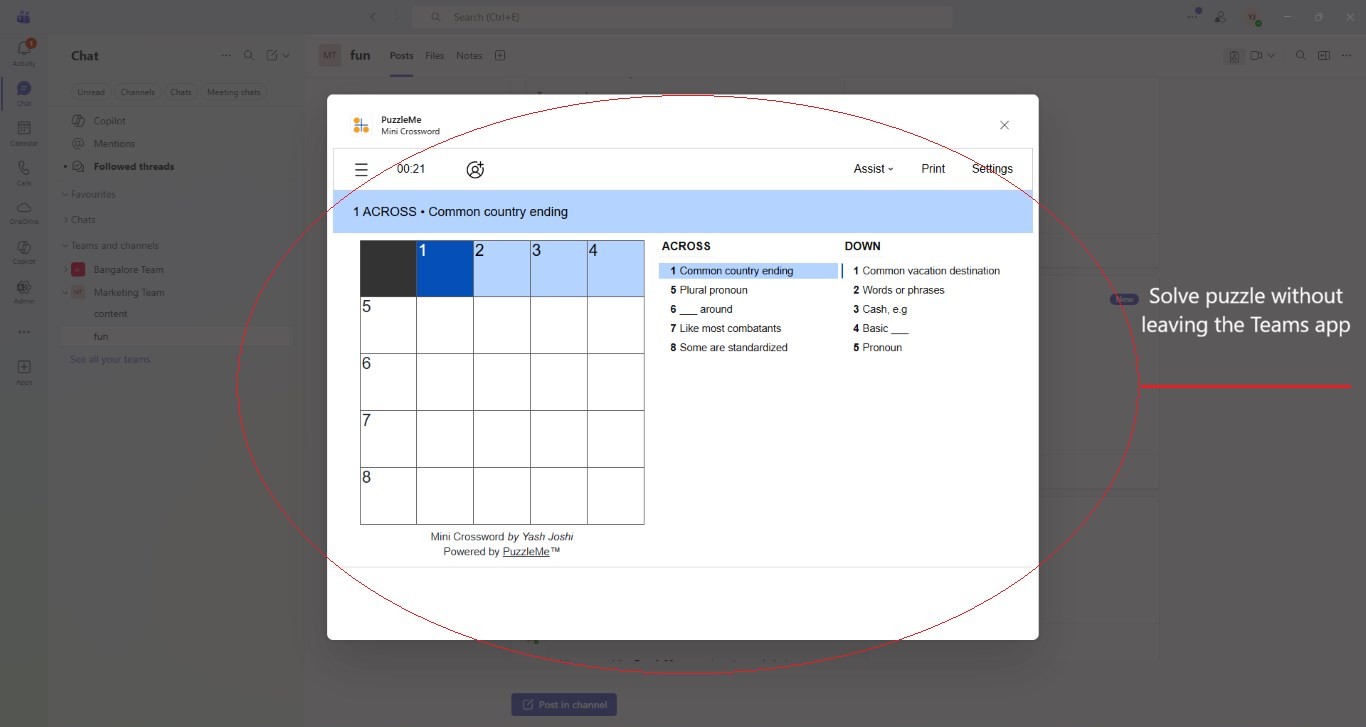
When someone shares a puzzle in a channel, you can play it directly from inside the Teams app.
- Click the Play Now button on the puzzle preview card.
- The puzzle will open in a dialog inside your Teams app (desktop) or in a new window (mobile).
- Solve the puzzle.
Your attempt will automatically be recorded when you start solving, and your solve time and scores will be recorded when you finish the puzzle.
Viewing the leaderboard
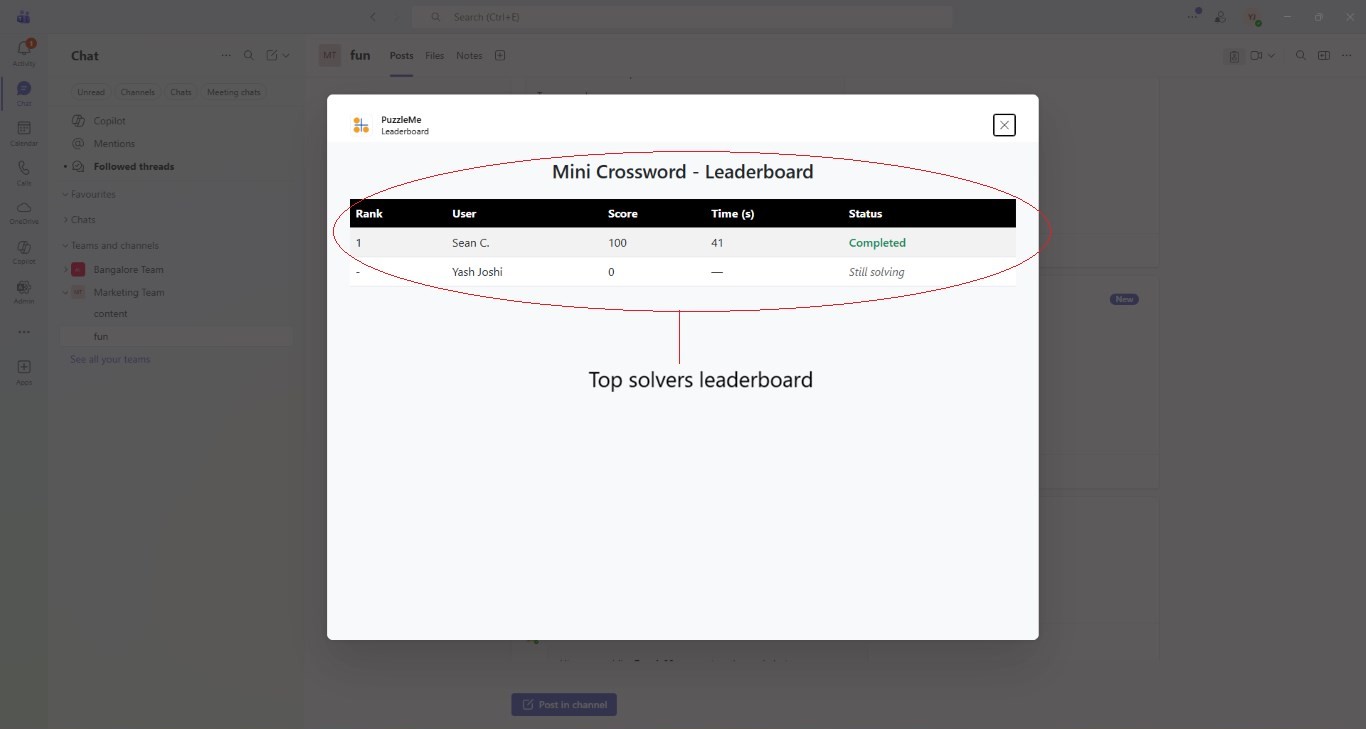
After solving a puzzle, you can see how your time compares with others in the team.
The leaderboard shows:
- Players who completed the puzzle
- Their solve times
- Players who are still solving
The leaderboard is visible only to members of your team.
Best practices
- Share puzzles regularly: Posting a new puzzle every day or week keeps your team engaged and encourages friendly competition. You can quickly create new puzzles using the PuzzleMe dashboard or our AI puzzle generator.
- Use puzzles as meeting warm-ups: Share a quick puzzle at the start of team meetings to help everyone switch gears and get focused. Many teams use short puzzles as a fun icebreaker.
- Encourage friendly competition: Challenge your teammates to beat your solve time. Leaderboards make it easy to track progress and celebrate the fastest solvers.
- Create themed puzzles: Try puzzles based on company trivia, project milestones, or inside jokes. Custom themes make puzzles more engaging for your team.
- Pin popular puzzles: If a puzzle sparks a lot of participation, consider pinning the message in your channel so more team members can join later.
Frequently asked questions
Do my team members need a PuzzleMe account to solve the puzzles?
No. Your team members can play puzzles directly in Microsoft Teams without creating a PuzzleMe account.
Can I share any PuzzleMe puzzle I create?
Yes. All types of PuzzleMe puzzles are supported for solving with our Teams app.
Who can see my score?
Only members who belong to your specific team can see the leaderboard, including anyone who has not started solving the puzzle themselves.
Can multiple teams in my organization use the app? Will leaderboards be shared across teams?
Yes. Multiple teams belonging to your organization can use the app. Each team gets its own leaderboard for each puzzle.
I am seeing "Teammate" instead of my team members' name on the leaderboard.
PuzzleMe requires Microsoft Graph API permission to read the names of your team members. If you are not seeing the display names of your teammates, please ask your Teams admin to approve PuzzleMe in the **Teams Admin Center → Teams apps → Manage apps → PuzzleMe → Permissions**.