Previewing puzzles
Learn how to preview your puzzles and series on different devices before publishing.
The Preview page allows you to see how your puzzle or list picker will look and behave on different devices before you publish it.
Preview control area
This section provides tools to control and customize your preview experience:
- Device size selection: When viewing a single preview, you can switch between mobile, tablet, and desktop dimensions
- Unpublished toggle: For unpublished puzzles or series containing at least one unpublished puzzle, you'll see a toggle that displays the unpublished state of the content
Multi-device preview
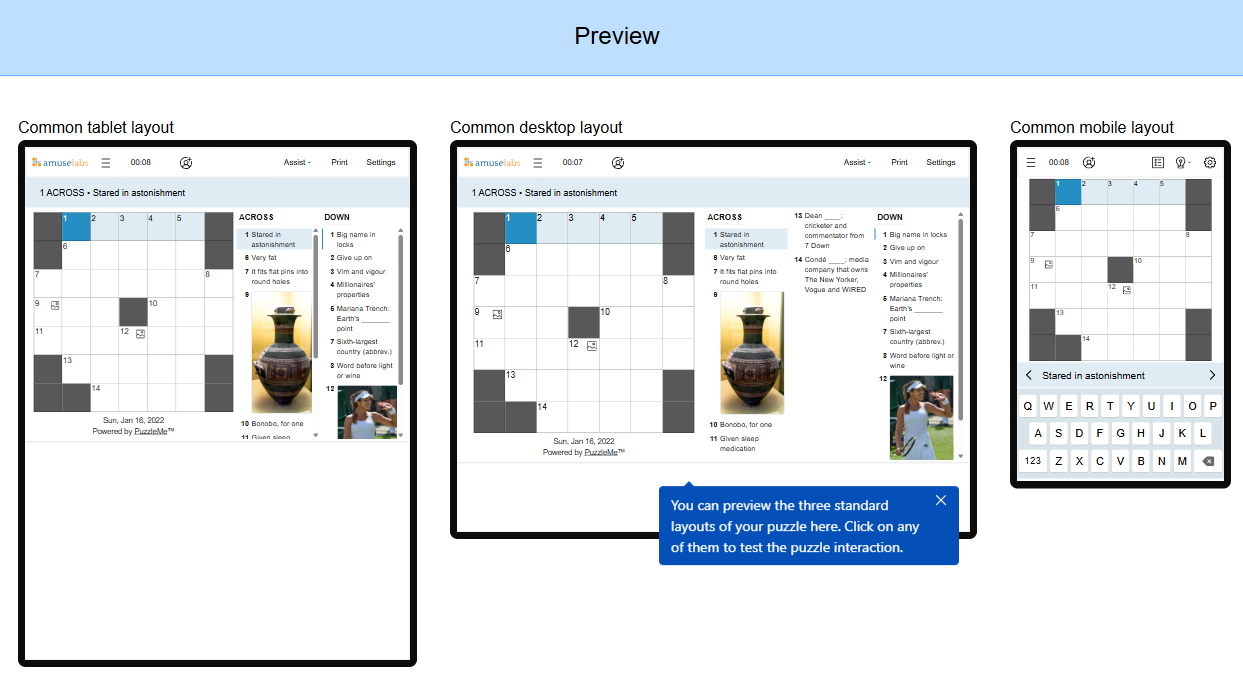
By default, the page displays three simultaneous previews showing how your puzzle appears on:
- Mobile devices
- Tablets
- Desktop computers
This allows you to quickly evaluate the responsive design of your puzzle across different screen sizes.
Single preview view
You can click on any of the three preview displays to expand it to a single, larger preview:
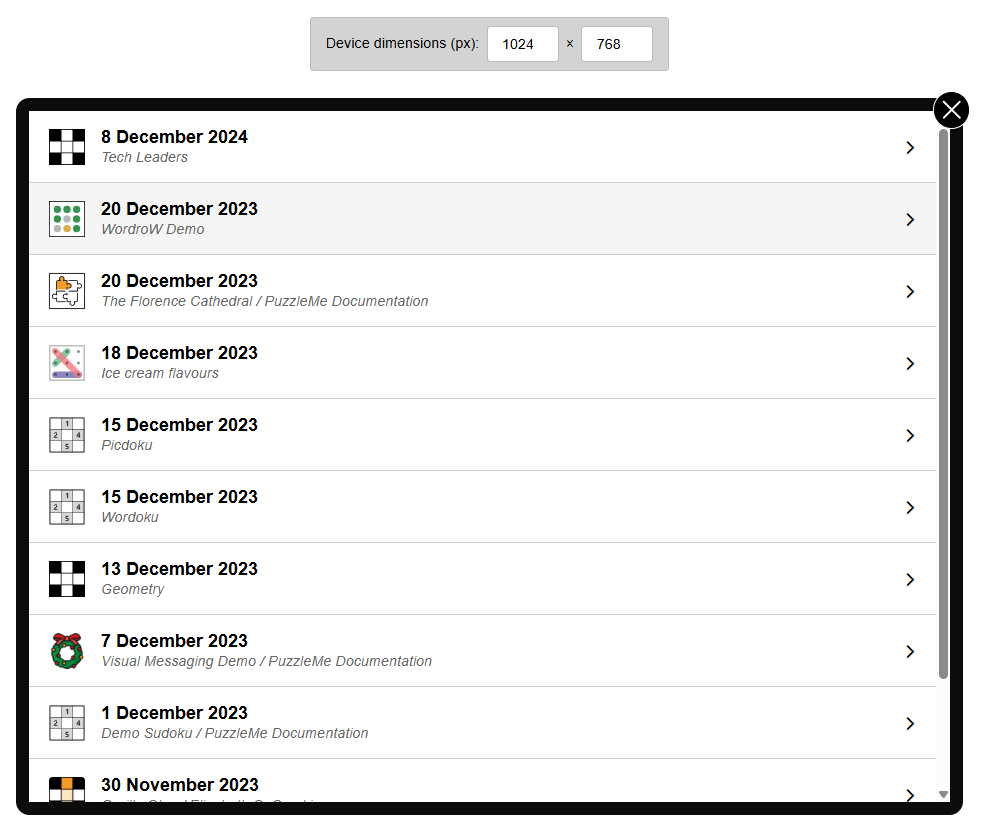
In this view, you can:
- Interact with your puzzle as a user would
- Adjust the device dimensions using the controls in the preview control area
- Return to the multi-preview view by clicking the close (X) button
Preview explanation
For series with the "disallowDirectPuzzleLoad" setting enabled, an explanation will appear below the preview to inform users about the series constraints.
Special notes
- The preview page now replaces the previous "Preview & Publish" functionality with a dedicated focus on previewing