Setting up a contest
Learn how to turn on Contest Mode and configure it for your puzzle
Enabling Contest Mode
You can enable Contest Mode by turning on the contest mode toggle from the "Scoring" tab in the puzzle creator form.
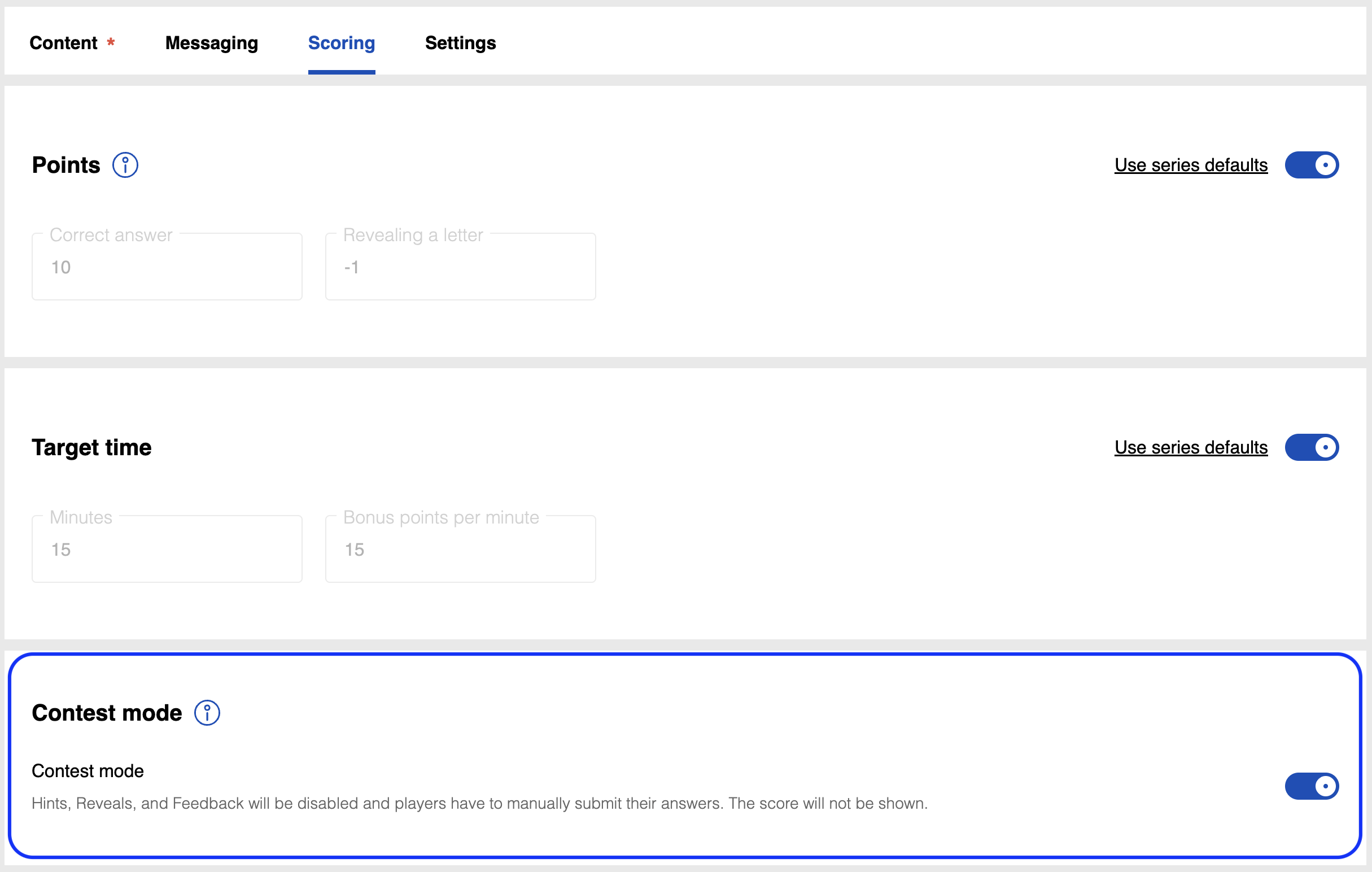
In your dashboard, such puzzles will have a "Contest Mode" label displayed.

Score calculation
The score is calculated based on the Points and Target time specified under the "Scoring" tab. By default:
- Solvers get 10 points for each correct word completed, or correct question answered ("Correct answer").
- Revealing a letter or answer deducts 1 point ("Revealing a letter").
- Under "Target time," solvers get a bonus of 15 points for each minute finished under a 15-minute threshold ("Minutes" and "Bonus points per minute"). Enter 0 in "Minutes" to turn off bonus points completely.
These settings are shared with non-contest mode scoring, so switching a puzzle to contest mode keeps whatever values you've set. All of them can be adjusted from the Scoring tab, and you can also implement your own scoring logic using the data in the Plays table CSV.
Feedback after submission
By default, once a solver submits, they see their time taken, but no feedback on what was right or wrong.
For grid puzzles like Crossword, two things can be configured separately: showing a right/wrong count (how many words out of the total were correct), and showing which specific answers were right or wrong. Please contact us if you'd like either of these set up for your account.
Countdown timer
By default, the timer counts upwards from 0. It can instead count down to 0 from a specified time, and show an alert to the solver when a specified time is reached. These options need to be enabled by our team. Please contact us if you'd like either turned on for your account.
Contest mode for Jigsaw puzzles
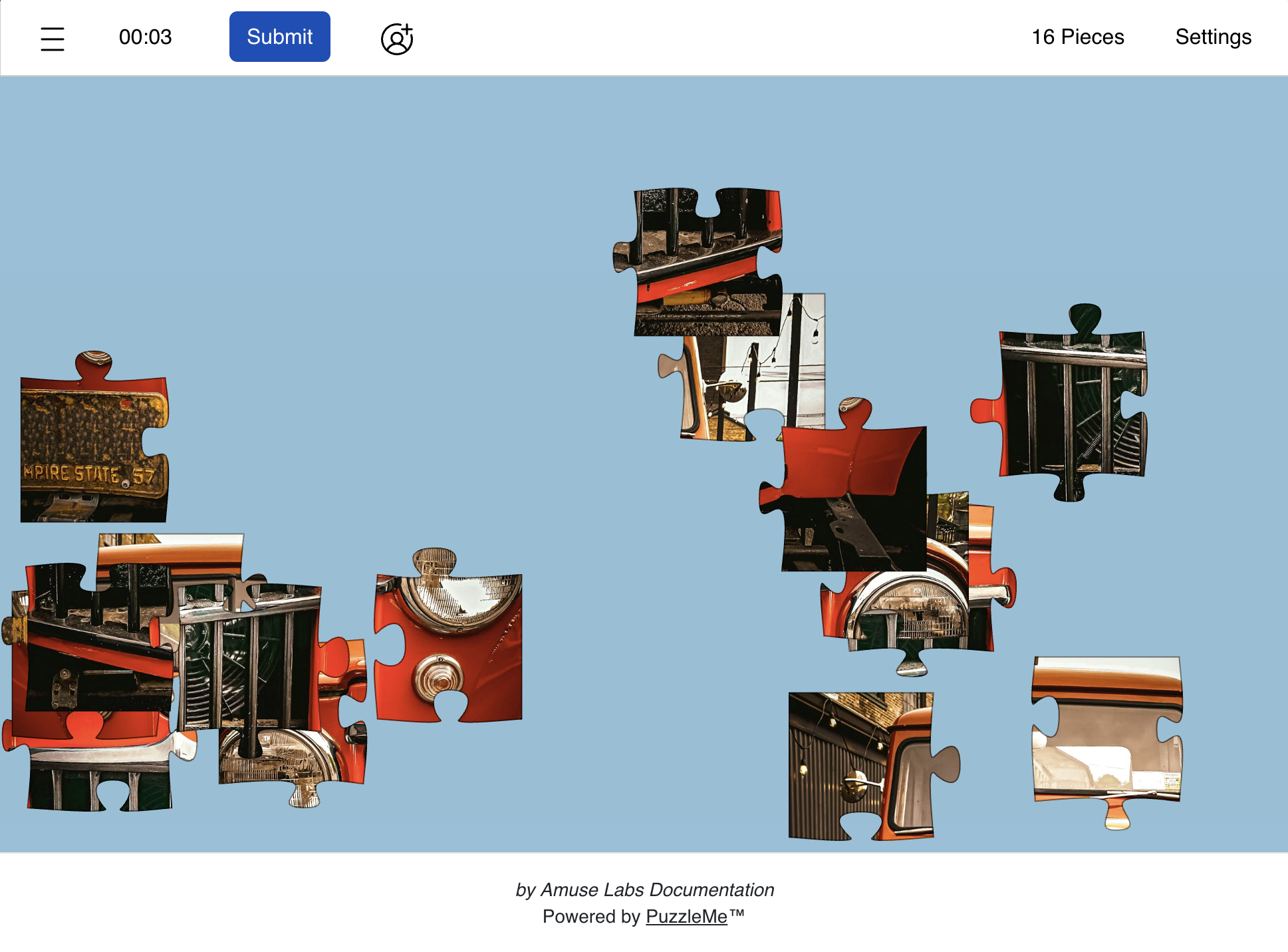
Jigsaw puzzles normally offer a few assist features from the Scoring tab: a Hint option showing which pieces are connectable, and options to disable the reference image or the edges-only view, or to start the puzzle already scattered instead of showing the reference image first.
Enabling contest mode for a Jigsaw puzzle automatically:
- Disables the reference image and edges-only options
- Breaks up the puzzle image into pieces automatically (scattered mode)
- Starts the timer immediately
Puzzle types without contest mode
Contest mode is currently available for Crossword, Sudoku, Jigsaw, Codeword, Quiz, Word Search and Kriss Kross puzzles. It is not available for WordroW or Word Flower.
Puzzles without contest mode behave differently in a few ways:
- There is no explicit "Submit" button — the puzzle is marked as solved once all the answers have been found or revealed.
- Solvers can clear their progress and restart the puzzle.
- Solving time is calculated only in the solver's browser, not on our servers, so it can be a little less reliable.
For these reasons, we don't recommend running a contest without contest mode. If you'd still like to use Word Flower in a contest or event, you can increase the puzzle's difficulty and reduce the help options available to solvers.
Making Word Flower harder
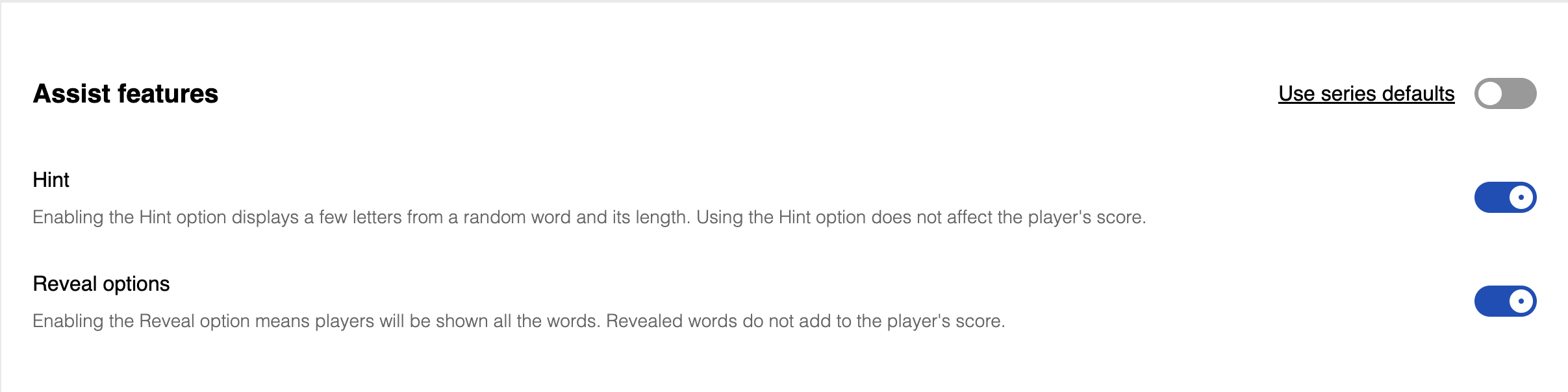
Under Assist features on the Scoring tab, you can disable Hint and Reveal options. Disabling Reveal ensures solvers have to find all the words themselves before a puzzle can be marked as solved; disabling Hint removes the option to see a few letters of a random word.
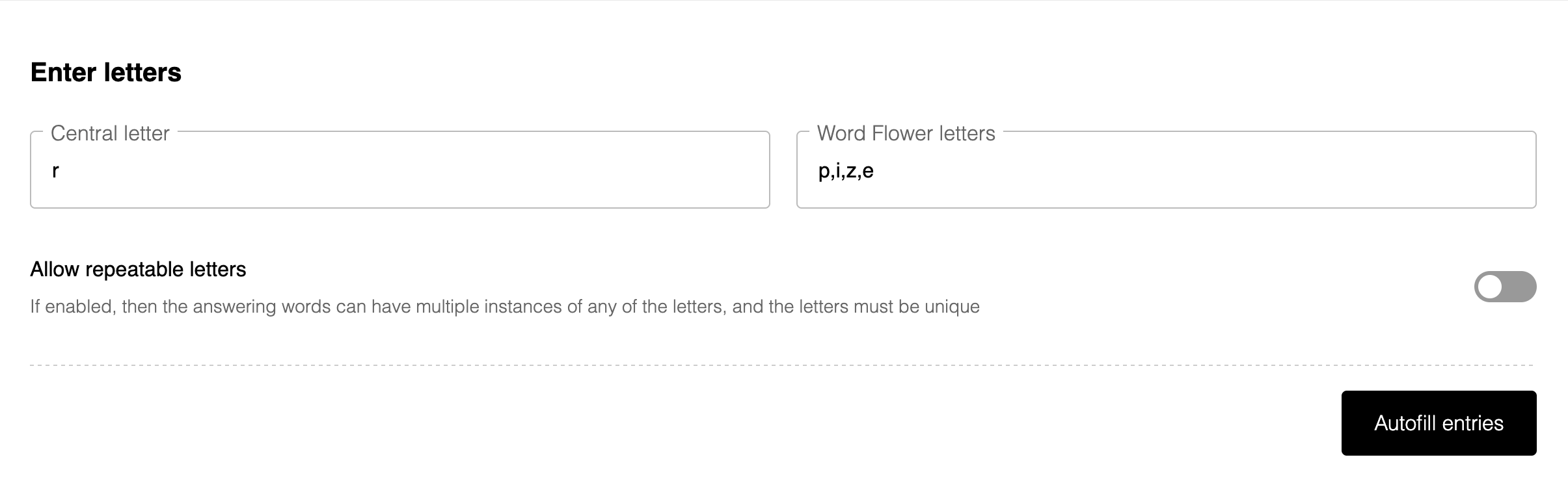
Another way to increase the difficulty is to prevent or allow repeatable letters, via the Content tab in the creator form. Please note that you might have to add or remove words from the puzzle to account for this setting.