Quick start
Embed PuzzleMe™ puzzles with JavaScript so social sharing, multiplayer invites, and progress saving work with minimal engineering.
JavaScript embed is the recommended way to embed PuzzleMe on your site. You paste a short snippet from the Publish page; PuzzleMe’s script injects an iframe into a div on your page and configures it so parent-page features work out of the box.
What you get without extra code:
| Feature | How JS embed helps |
|---|---|
| Social sharing | Share links use your page URL so shared puzzles open correctly |
| Multiplayer invites | Link-based invites pass the right session data into the iframe |
| Progress saving | A first-party cookie keeps sessions sticky in the browser |
iframe embed is fine for a basic paste-and-go player. Use JS embed when you want sharing, invites, and reliable progress without building those yourself.
Progress across devices needs a stable user id from your site (for example a hashed login id). The default embed cookie alone does not span devices. See User identity or Full setup.
Get the embed code
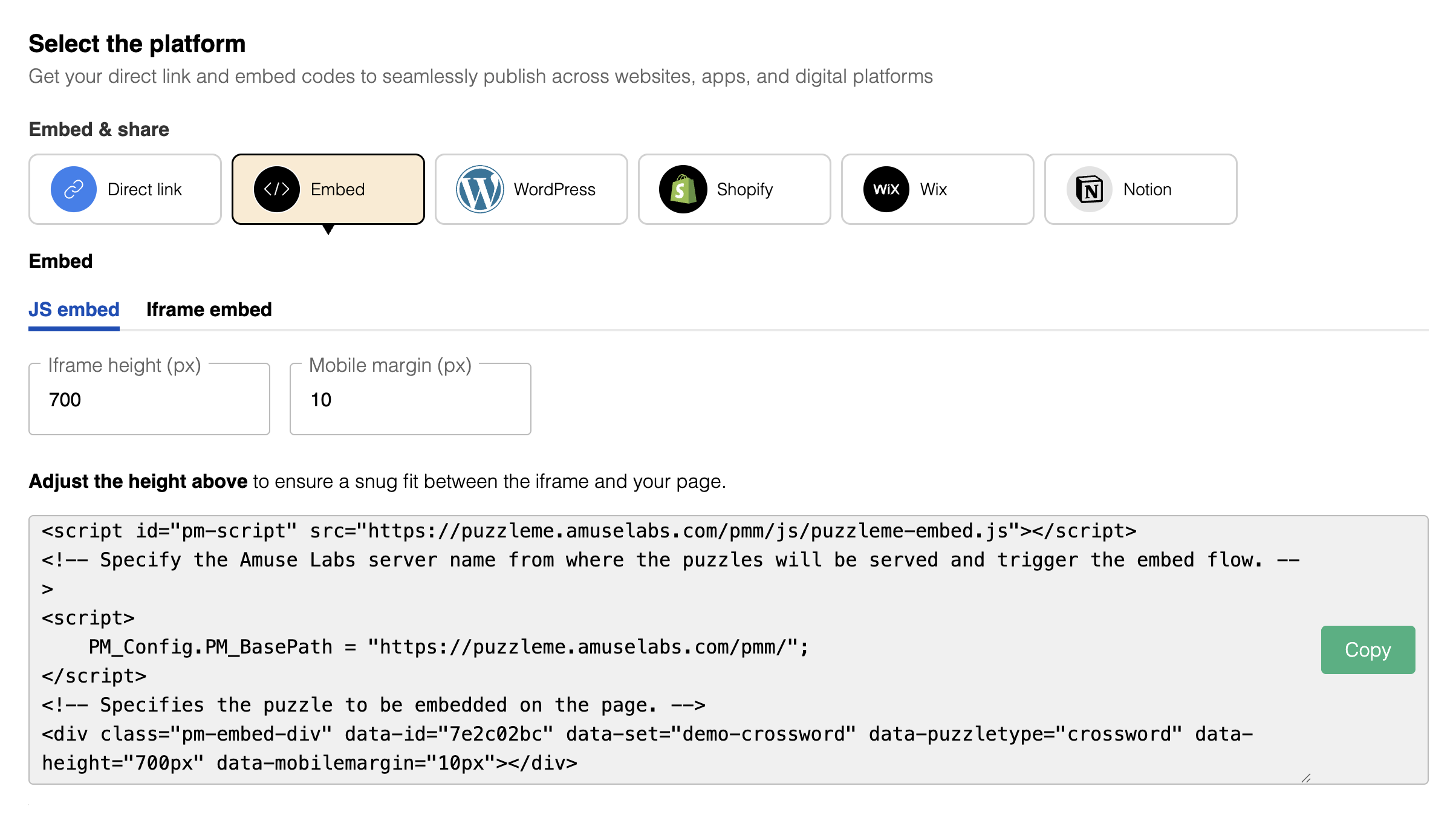
- Open your puzzle and click Preview.
- On the Preview page, click Publish.
- On the Publish page, open the Embed tab.
- Select the JS embed sub-tab.
- Adjust height if needed (pixels).
- Click Copy.
Add it to your page
- Open your page’s HTML.
- Paste the snippet inside
<body>, where the puzzle should appear.
The snippet loads PuzzleMe’s embed script, sets the server path, and places a pm-embed-div container. At runtime the script injects an iframe into that div—you do not put iframe HTML in the page yourself.
How this differs from iframe embed
JS embed adds the parent-page wiring (URL, cookies, share/invite params) automatically. For deeper customization beyond the embed script, see Advanced integration.
Need a custom or manual setup?
If you are adapting the embed (CMS constraints, logged-in users, custom messaging), follow the full reference instead of only pasting the Publish snippet:
Full setup — viewport, container attributes, server path, user identity, and optional iframe messaging.
Next steps
- Full setup — step-by-step reference
- User identity — pass logged-in users for cross-device progress
- Social play and sharing — how share and invite links work
- Iframe communication — listen for puzzle events on the parent page
- Iframe dimensions — sizing for desktop and mobile