BeeHiiv
Learn how to embed PuzzleMe puzzles in your BeeHiiv posts
BeeHiiv is a newsletter platform that allows you to create posts which you can publish online on a blog, as well as send directly to your audience via email. Think of it like SubStack, but with support for embedding puzzles!
How it works
Since iframe and custom HTML is not natively supported in email clients, BeeHiiv allows you to use custom HTML snippets in the web version of posts. These HTML snippets are not displayed inside emails. BeeHiiv also provides an option for you to selectively hide specific sections of your posts on web or email. Thus, the recommended approach of embedding puzzles in your posts is:
- Embed a responsive iframe in the web version of your post, using the HTML snippet widget of BeeHiiv. Your readers can solve the puzzle directly while reading the post.
- Add a direct link to the puzzle via the Embed Link widget of BeeHiiv. Your email readers can click this link, open the puzzle in a browser and start solving.
On emails, only the direct link snippet is shown. On web preview, only the interactive puzzle is shown. Thus, you can create a seamless reading and solving experience for both your web and email audience, from within a single BeeHiiv post only.
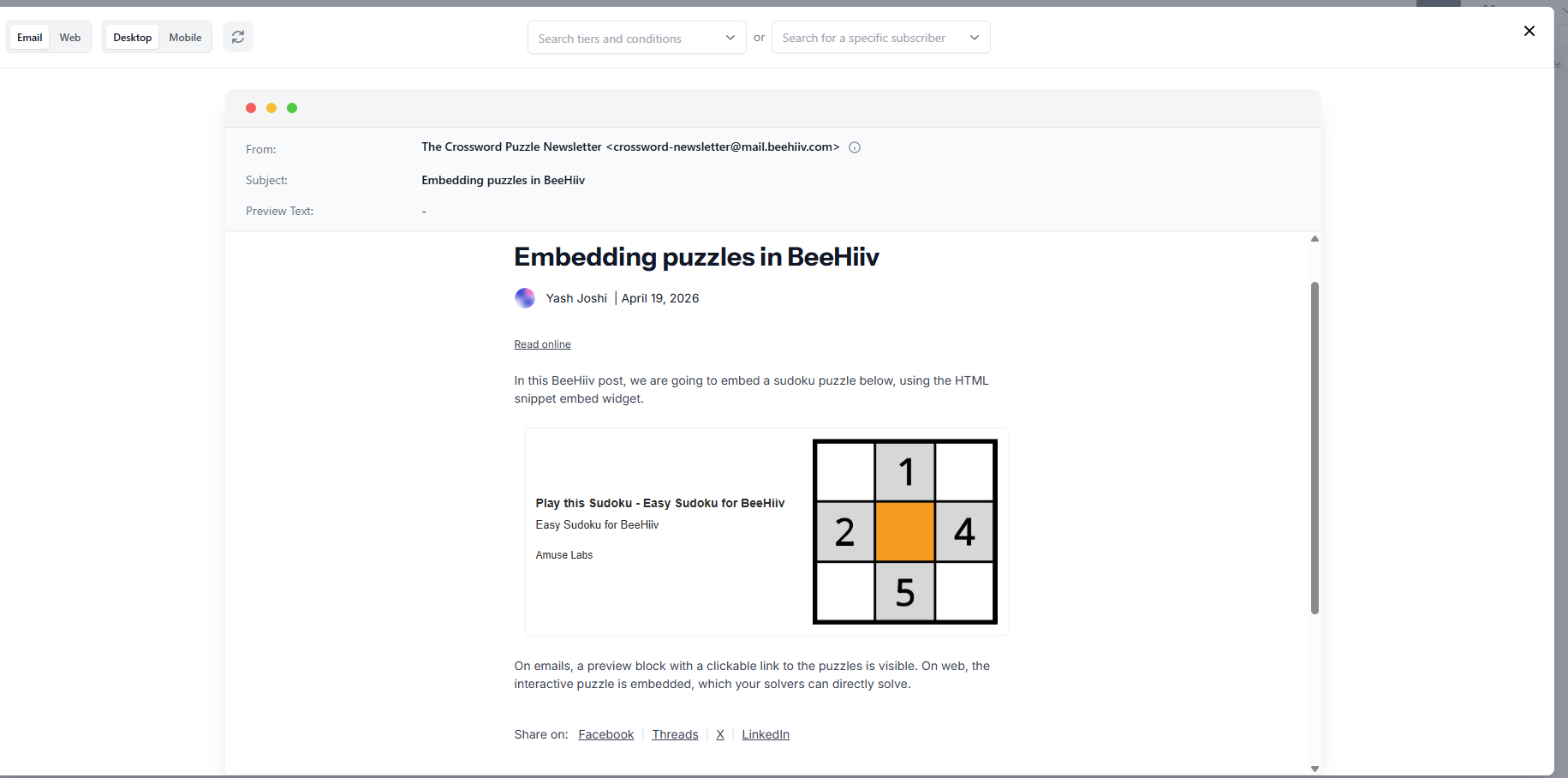
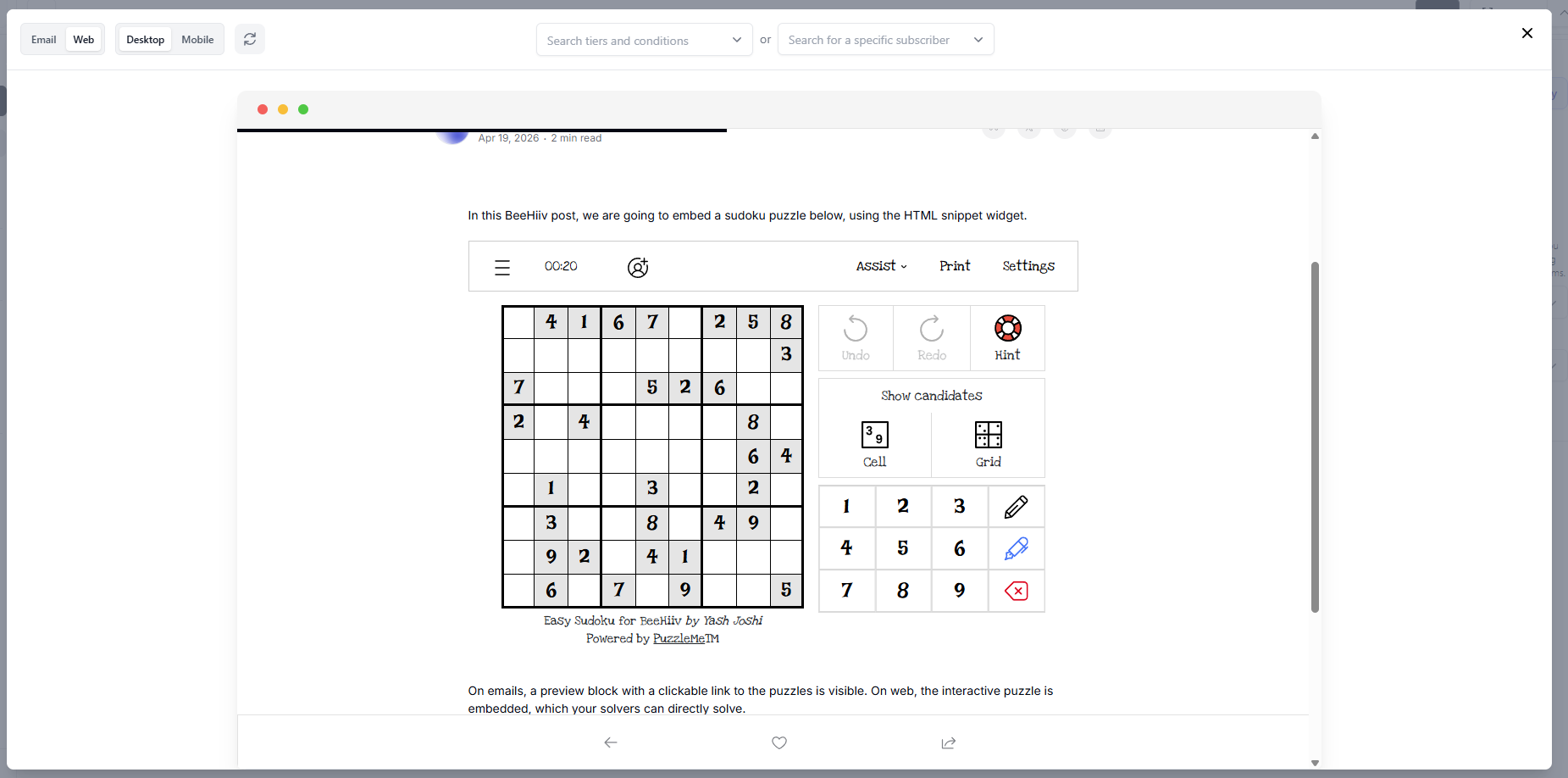
Steps to embed a puzzle:
- Create a new post in the BeeHiiv editor.
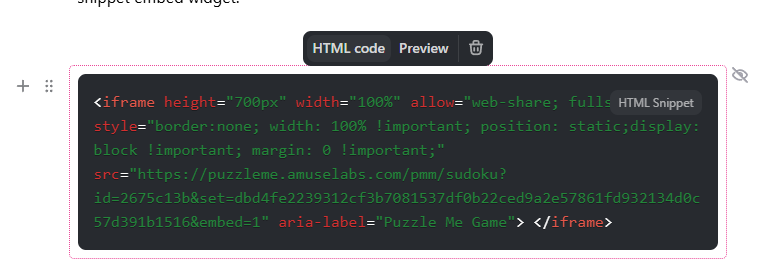
- In the BeeHiiv post editor, type "/" and then type "HTML". Choose the HTML snippet widget from the list of widget options that are displayed below.

- Copy the iframe embed code for the puzzle from your PuzzleMe dashboard, and paste it in the HTML snippet body.
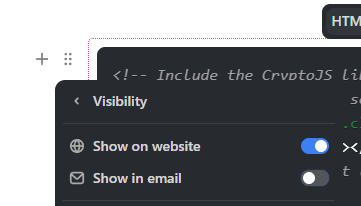
- Hover your mouse to the left of the HTML snippet widget, and click on the six dots icon. This will open a dropdown menu with the widget's settings. From the dropdown menu, select the Visibility option.
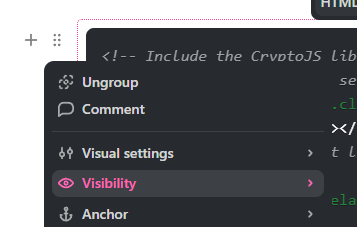
- Under the Visibility menu, turn off the "Show in email" toggle.
- Add a new widget "Embed link" below the HTML snippet widget.
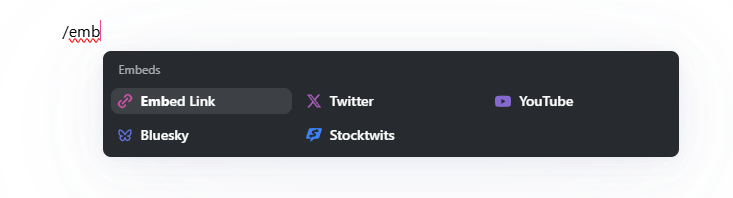
Paste the direct link to the puzzle, taken from your PuzzleMe dashboard here, and press enter.
Under widget settings > Visibility, turn off the "Show on website" toggle.
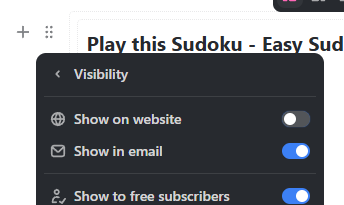
Hide Embed Link widget on web version (Optional) You can also add a text block below the embed link, with instructions along the lines of "Click the link above to solve the puzzle". This makes it clear to your email readers on how they can access the puzzle.
Tips
The default iframe height in the embed code might add extra whitespace in the post. If you are seeing too much whitespace between the puzzle and the text below, reduce the height of the iframe a little, in the HTML snippet.