Grid editor
Learn the grid tools used to build structure, improve fill quality, and style a crossword.
On Edit grid and clues, the grid editor lets you edit the grid structure and appearance. This covers letters, grid shape, black squares, and how cells look.
Refer to the image below so you know what each left-toolbar icon does.
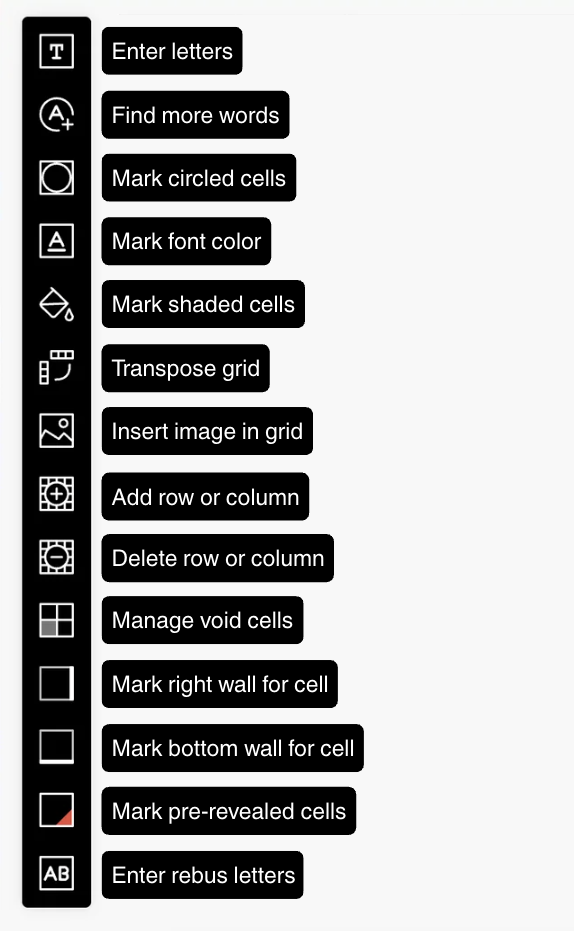
Use the sections below for each left-toolbar feature.
Enter letters
- Select Enter letters.
- Click a cell and type to add or update a letter.
- Use arrow keys to move through cells.
- Use backspace to remove a letter and turn the cell into a black square.
- Save or reset from the top bar when done.
Find more words
- Start with a partially filled grid (Find more words is not available for empty grids).
- Open Find more words and choose your sources:
- PuzzleMe AI topics
- Custom words
- Built-in dictionaries
- Click Get suggestions, then review and place entries as needed.
In the source popup, you can generate topic-based words with PuzzleMe AI, enter your own terms under Custom words, or select from Built-in dictionaries.
After suggestions appear, the list shows entries that fit your current grid and their possible positions. Hover any option to preview placement in the grid, then click the suggestion to place it.
You can also click a cell to filter suggestions for that location only; click the cell again to clear the filter. Continue accepting suggestions until the fill feels complete.
If the latest round of accepted suggestions is not working, use Reset to return to the state before that run.
When you are happy with the accepted suggestions, click Save and then continue with clue writing for the new entries.
Use this tool when you want to increase grid density, mix themed words with general fill, or pull from a custom list without rebuilding the puzzle.
Mark circled letters
Mark shaded cells
Mark font color
Transpose grid
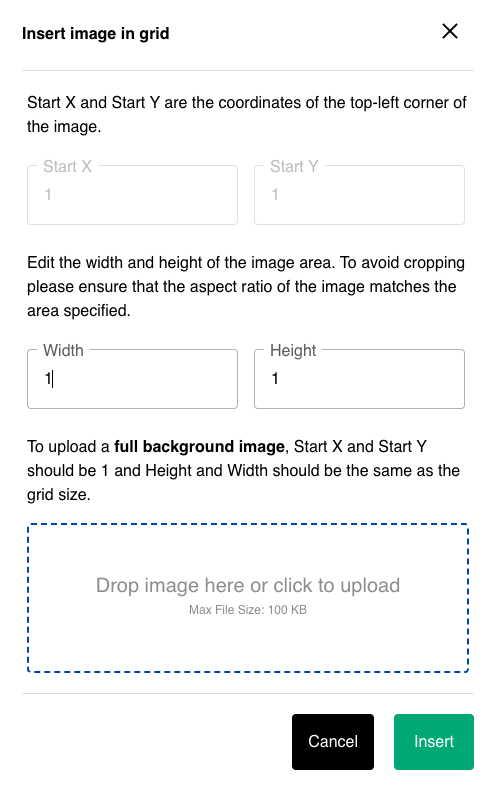
Insert image in grid
- Pick a start cell.
- Upload or drag-drop an image.
- Set width and height in grid cells.
- Insert and save.
For a full-background image, set start coordinates to the top-left and use width/height matching the grid size.
To remove an image:
- Reopen the ‘Insert image in grid’ option.
- Click the top-left cell of the inserted image.
- Click the image and confirm deletion.
Add row or column
Delete row or column
Before leaving this page, make sure to click Save in the top bar to keep your latest edits. Use Reset if you want to discard unsaved changes from the current session.
Manage void cells
Void cells are transparent black squares that help create non-rectangular puzzle shapes.
You can:
- Mark void cells
- Mark all solid cells void
- Mark all void cells solid
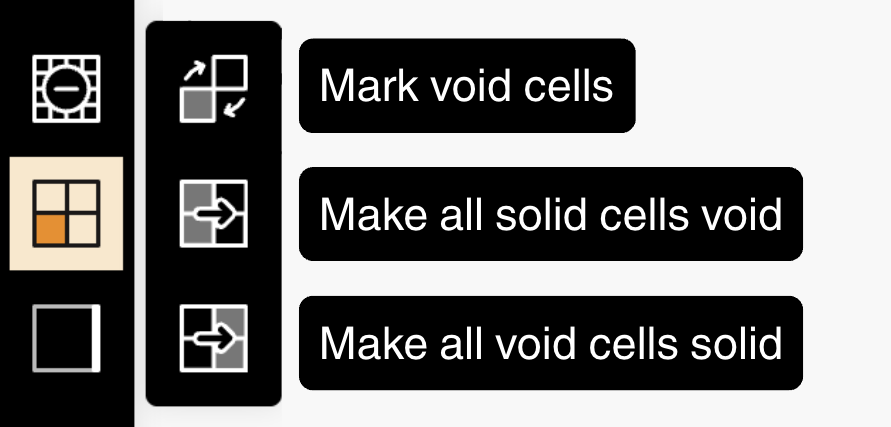
Use the ‘Manage void cells’ option when you want a shaped puzzle appearance without changing entry boundaries.
Cell boundaries with walls
Mark right wall for cell
Mark bottom wall for cell
Walls (bars) split entries without requiring black squares and can produce denser barred-style patterns.
Walls are toggled by clicking the target cell again.
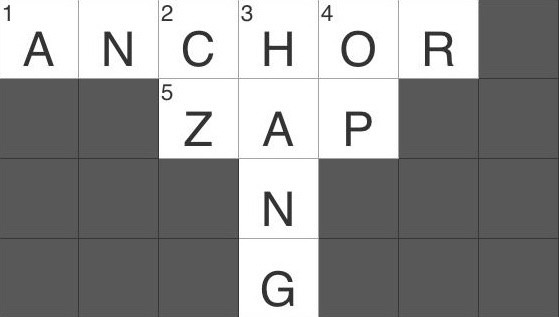
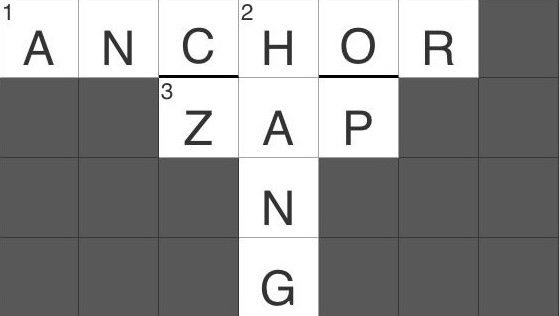
Walls can be added on the right or bottom side of a cell. To create a top wall, add a bottom wall to the cell above. To create a left wall, add a right wall to the cell on the left.
Pre-revealed cells
- Select Mark pre-revealed cells.
- Click any lettered cell to mark it.
- Click again to remove the mark.
- Save changes.
Enter rebus letters
- Select Enter rebus letters.
- Click the target cell.
- Type the characters you want in that single cell.
- Repeat for any other required cells.
- Save changes.
Use curly braces to represent multiple characters in one cell when writing answers via the creator form, for example FA{THE}R.
Useful behaviors to know:
- Rebus cells can intersect normally (for example
FA{THE}RcrossingMO{THE}Ron{THE}). - For some scripts (such as Indic scripts), PuzzleMe can automatically split answers into grapheme cells (for example
माताas{मा}{ता}). - Mixed-script answers are supported in a single word.
- You can cross-reference rebus answers in clues using
$answer$, for example$FA{THE}R$. - Single-character braces are normalized, so
FA{T}HERbehaves likeFATHER.
Named after Schrödinger's cat, a Schrödinger crossword allows two different valid fills for the same entry, with both versions still fitting the crossing answers.
Unlike a standard crossword (where each clue has one fixed answer), these puzzles intentionally support dual outcomes in specific spots.
For example, one position in the grid might allow either SUN or SON, and both remain valid with the crossings.
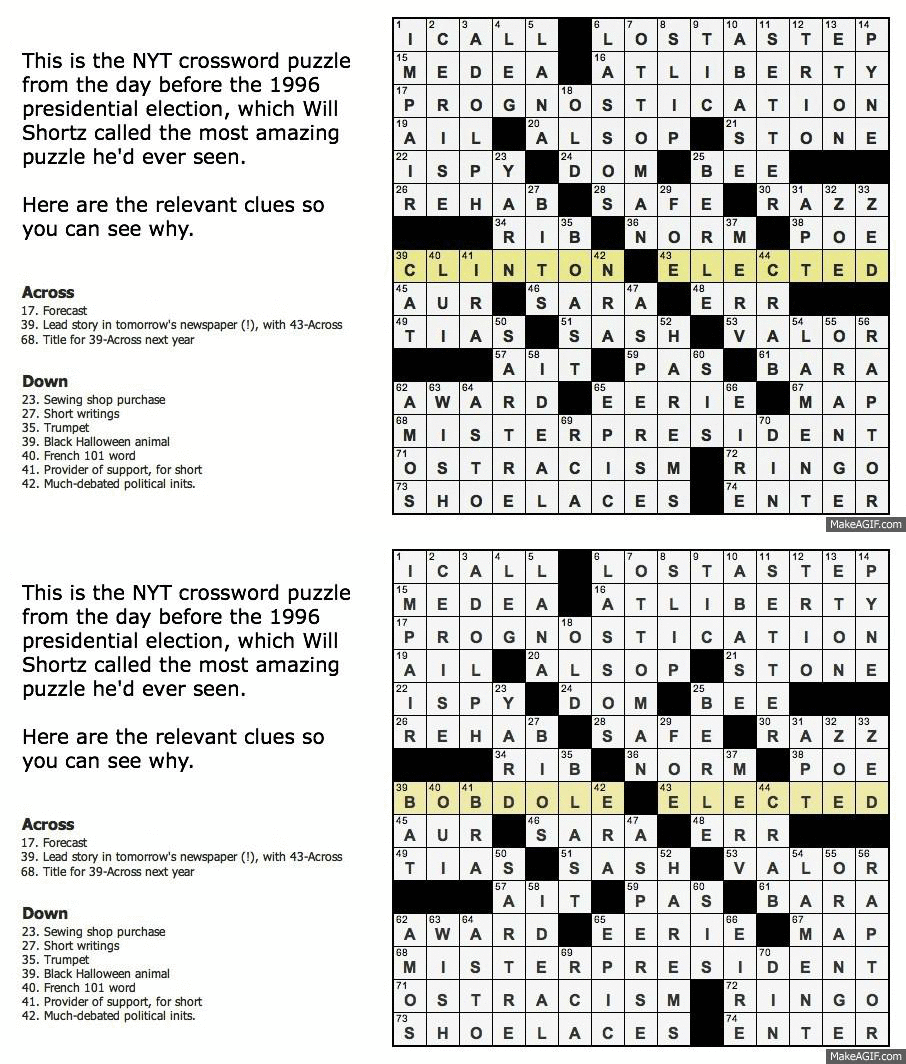
You can also use Enter rebus letters to create Schrödinger-style grids or entries.
Creating Schrödinger-style entries
- Select Enter rebus letters.
- Click the target cell.
- Enter alternatives separated by
/(for example,U/O). - Repeat for any other required cells.
- Save changes.
- Verify the puzzle by testing each valid alternative in the player.
For crosswords that contain Schrödinger entries, once the puzzle is completed, those cells can flash between the different valid letter options as a fun reveal.
This Spyscape crossword shows how pre-revealed cells and void cells can shape puzzle layout.
The 5 Boroughs puzzle from Lollapuzzoola shows how visual styling can create a distinctive finished grid.