Edit grid and clues
Edit grid and clues gives you grid-editing tools and clue-editing tools while you create or update a crossword on PuzzleMe™.
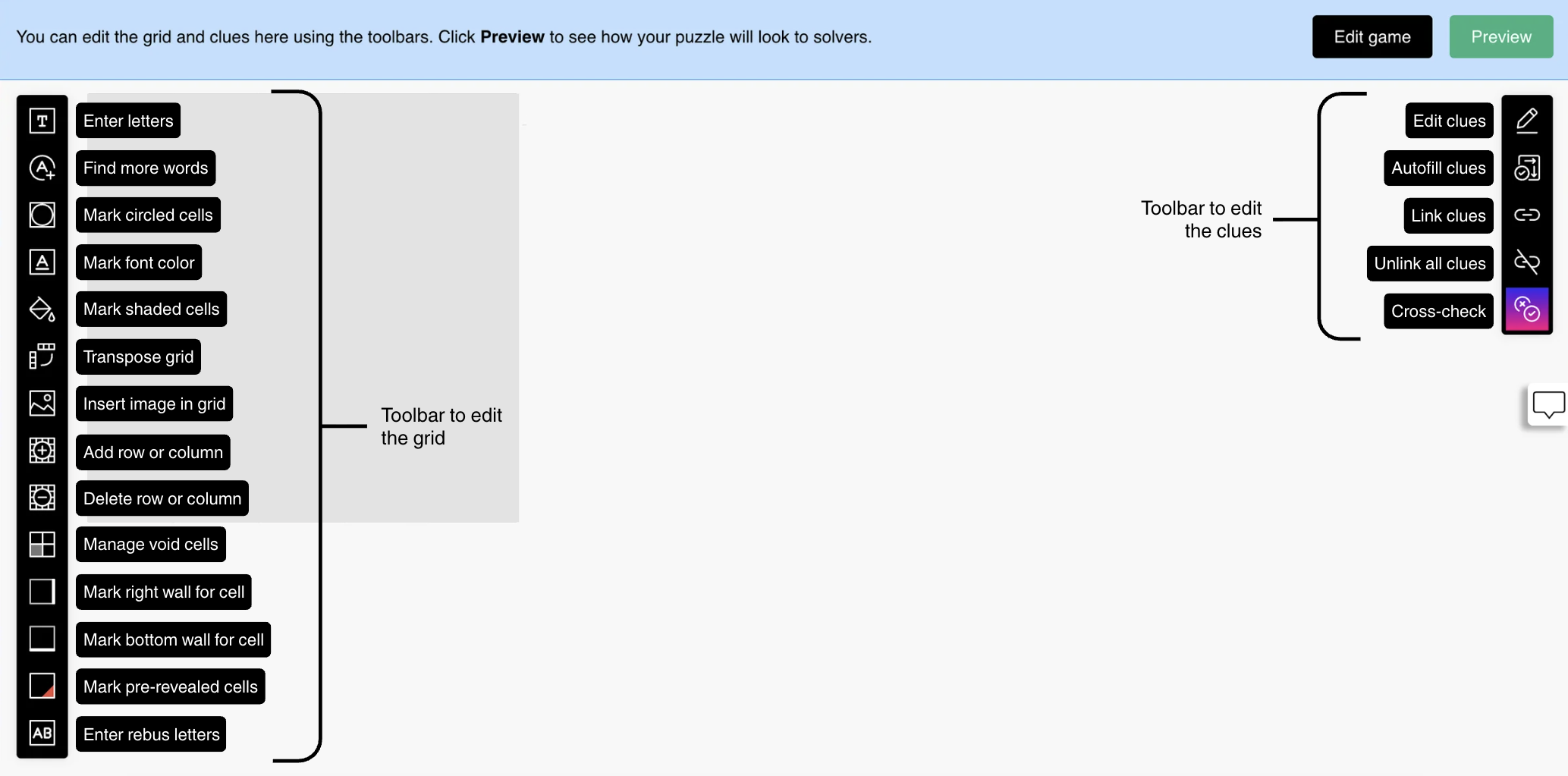
The left toolbar is for grid layout and appearance; the right toolbar is for clue management and clue-checking.
The screenshot below labels toolbar icons so you can match names to controls.
Once you save a puzzle, you cannot revert to a previous version. Before making major changes, clone the puzzle to keep a backup.
Grid editor
Grid tools let you enter and remove letters, run Find more words on a partially filled grid, mark circled, shaded, or custom font colour on cells, transpose the grid, insert an image, and add or delete rows or columns.
For shaped grids and special solving behaviour, you can manage void cells, draw right or bottom cell walls for barred layouts, mark pre-revealed letters, and enter rebus cells (including Schrödinger-style alternatives).
For step-by-step instructions for each control, see Grid editor.
Clues editor
Clue tools let you change clue text, media, credits, hints, explanations, and how word lengths appear in the clue list. You can browse database suggestions, try AI-generated clue drafts (always review before publish), and autofill many clues at once.
You can link or unlink clues from the same toolbar, including autolink when clues use “see 5 Across” style references. Cross-Check runs clue-and-answer review before you publish.
For step-by-step instructions for each workflow, see Clues editor.