List picker
Understand the list picker component, its features, customization options, and how to embed it on your website.
The list picker is one of PuzzleMe's picker types. It displays published puzzles from your series as a publish-date-ordered list, so visitors can scroll through and pick which puzzle they want to play, instead of you linking to and embedding each puzzle separately.
It's a good fit for frequent publishing schedules: solvers can catch up on puzzles they missed, browse your archive, or land straight on today's puzzle, depending on how you set it up.
Try out the list picker here:
Here's what it offers once it's live:
Tracking progress
Players can see which puzzles they've started or completed when they return to the list picker. See Picker features for how progress tracking works across all picker types.
Customizing the picker appearance
You can customize how the picker looks and what information it displays through your series Settings. These options let you match the picker's appearance to your brand or publication style. For details about the available picker display styles, see the Picker Appearance section in Settings.
Picker display styles
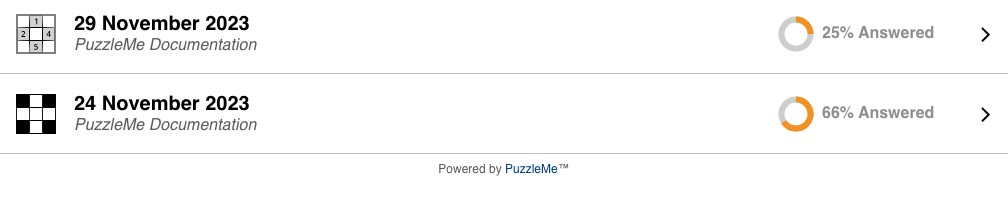
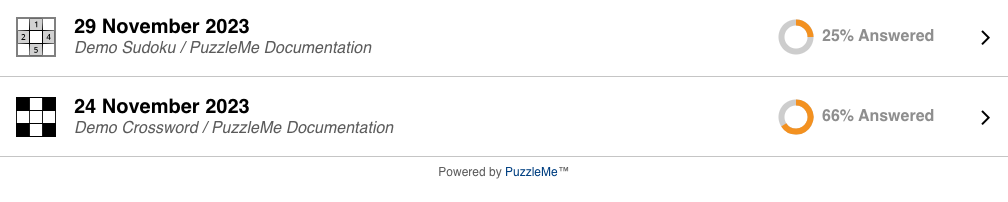
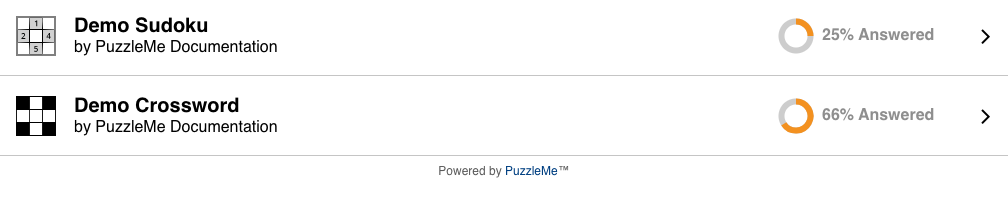
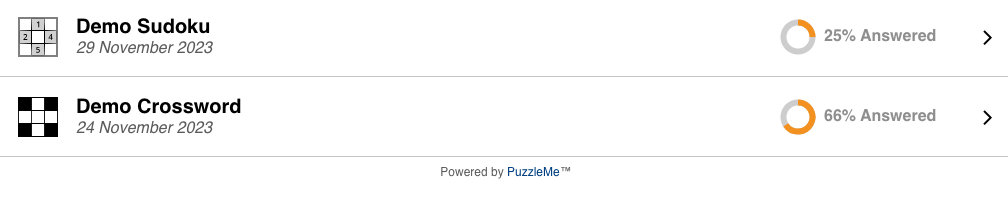
You can choose from four different display styles for how each puzzle appears in the picker. Each style shows different combinations of puzzle information:
- Publication Date and Title / Author
- Puzzle Title, "by" Author, and Subtitle
- Publication Date and Author
- Puzzle Title and Publication Date
Additional picker settings
Beyond display styles, you can configure additional picker behavior. The Hide Picker Link option hides the "More Puzzles" link from the hamburger menu and completion pop-up. The Pre-roll Ad Tag Link setting lets you add a VAST ad tag for video pre-roll ads, which only works with picker embeds. These settings are available in your Series Settings.
Embedding the picker
Embedding the picker follows a similar process to embedding a single puzzle. The main difference is how you obtain the embed code from your dashboard.

To get the embed code for your list picker:
- From the dashboard, ensure the correct series is selected.
- In the Series Controls section, click the publish icon. You'll see a pop-up asking "What would you like users to see?"
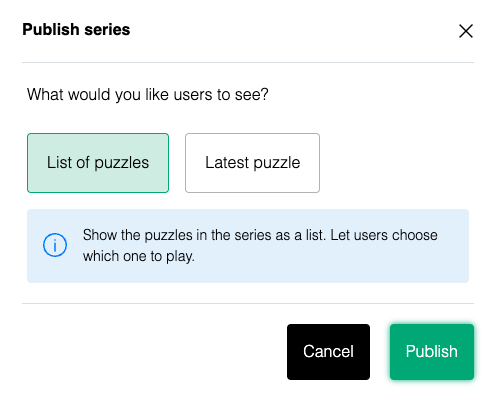
Both options are still the same list picker underneath, they just differ in what a visitor sees first.
List of puzzles
This option shows the full list: all published puzzles from your series, ordered by publication time with the latest on top. It initially shows the 14 most recent puzzles, then click "Load more" to reveal 7 more at a time, as many times as needed to see the whole series. This is ideal for showcasing multiple puzzles or creating a puzzle archive.
Latest puzzle
This option opens straight into the most recent puzzle in the series, instead of the full list. Puzzles are numbered in reverse order of publication, so the newest puzzle is always #1, the one before it is #2, and so on. As you add new puzzles, the numbering updates automatically, so your embed always opens on the latest puzzle without needing to change your embed code. Solvers can still get to the full list from here via the hamburger icon in the puzzle interface.
| List of puzzles | Latest puzzle | |
|---|---|---|
| Initial view | Full list, latest puzzle on top | The most recent puzzle |
| Access to full list | Always visible | Via hamburger menu → "More puzzles" |
| Best for | Landing pages where visitors browse and pick, catching up on missed days, multiple puzzles per day, or archive pages | A stable daily link that always opens straight into play, no picking required |
On PuzzleMe's premium plans, you can customize the picker link text using the "Picker label" setting or disable the option for solvers to go back to the picker using the "Hide picker link" series setting on your dashboard.
- Once you've picked an option, this opens the Publish page specifically for the selected list picker.
- On the Publish page, choose your desired embedding method (e.g., Embed -> JS Embed, Embed -> iframe embed, WordPress, Direct Link) and copy the provided code or link.
- Paste that code or link onto your site and publish!
For more on embedding methods and integration options in general, check out the Integration section of the docs.