Account setup
Learn how to log in, set up and manage users in your PuzzleMe™ account.
Log in to PuzzleMe
Everyone logs in from the same page, at this link. Just pick the account you already use elsewhere: Google, Microsoft, Yahoo, X/Twitter or Facebook. This works the same way on the Personal, Plus, Professional and Enterprise plans, with no separate signup needed.
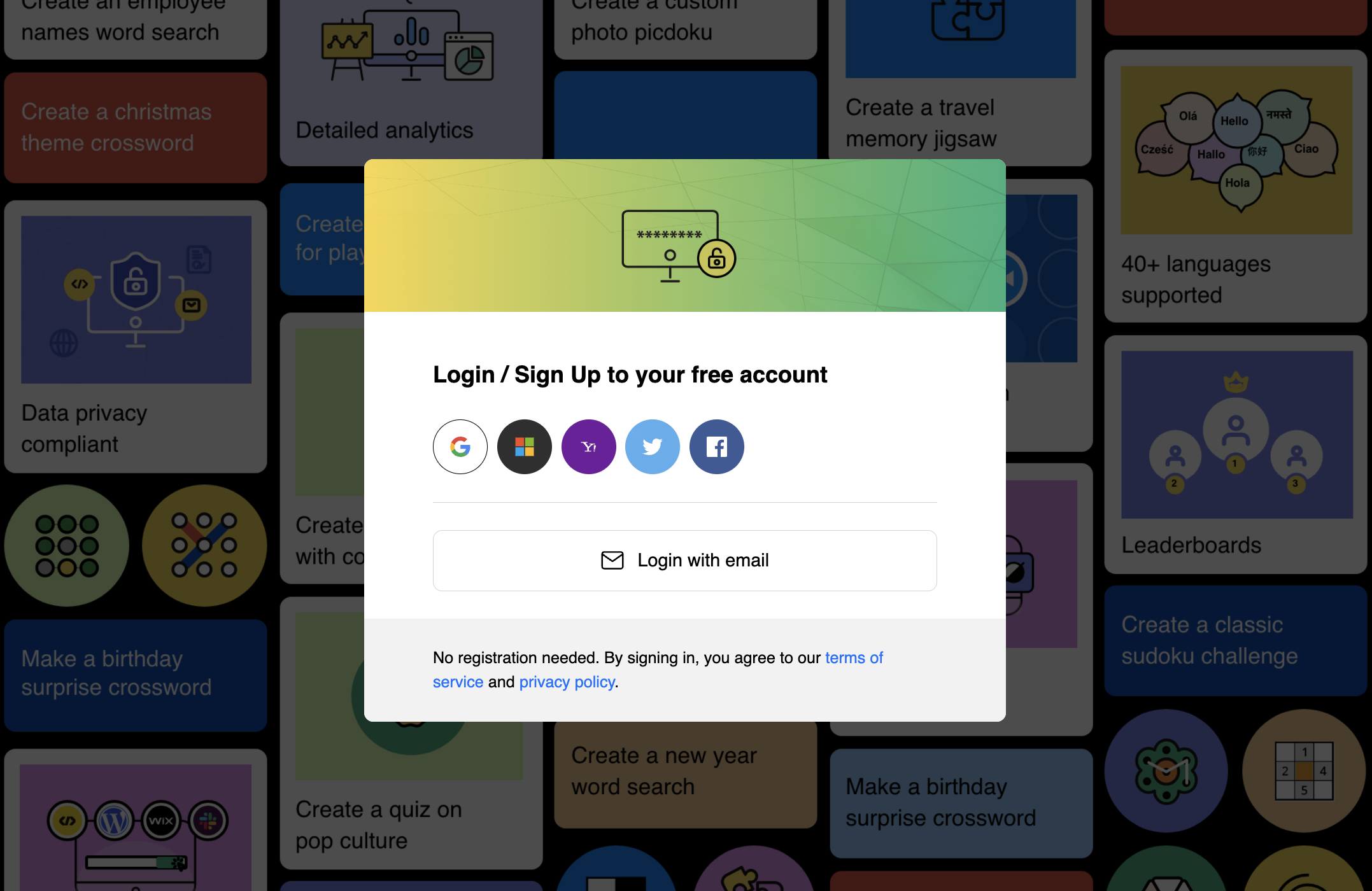
If you upgraded your plan from within the dashboard after July 3, 2026, keep logging in the same way you always have, no separate account needed.
If you sign in with an email and password instead of Google, Microsoft, Yahoo, X/Twitter or Facebook, click "Login with email" instead. This applies to Plus, Professional and Enterprise accounts set up before July 3, 2026, and to some Enterprise accounts set up after that date.
Login with email
Click "Login with email" and sign in with your email and password.
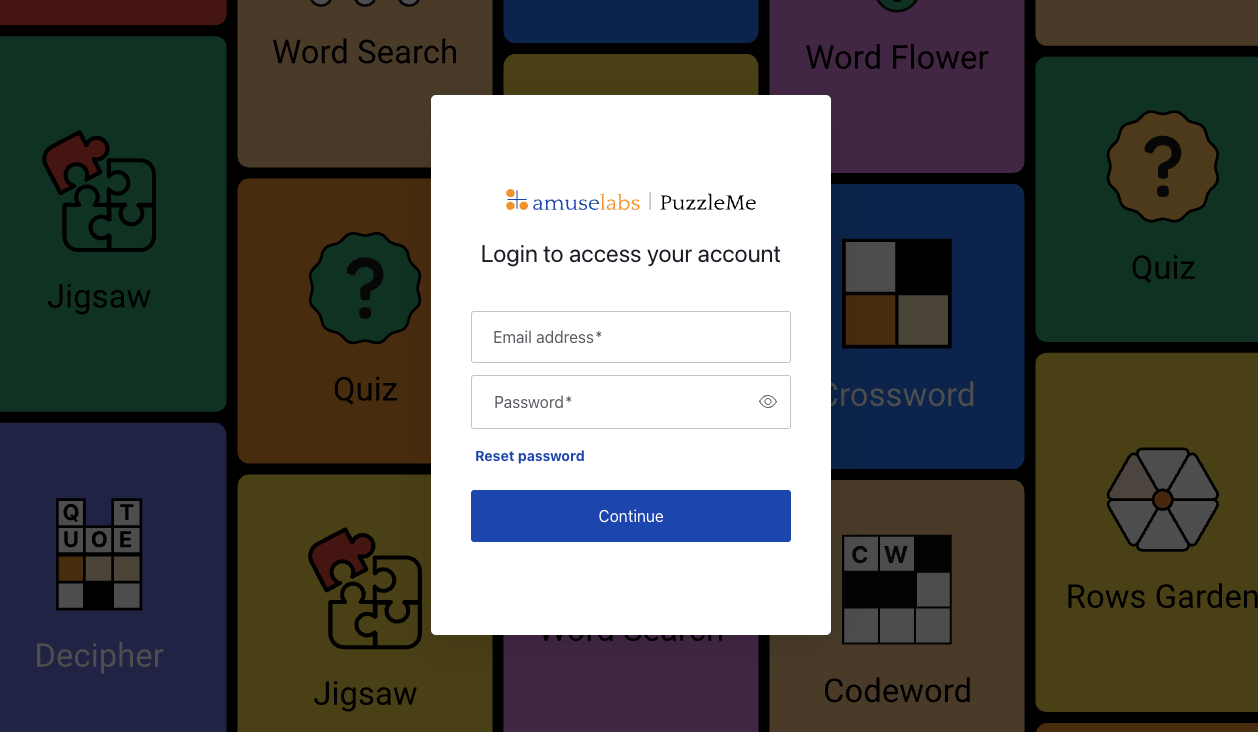
If your account uses this email and password flow and you do not set it up within 30 days of signing up, your login URL will be deactivated for security reasons. If that happens, please contact us.
Setting your password
You set your password by clicking on the "Set Password" button in your welcome email. Then, to login to your PuzzleMe Dashboard, go back to the welcome email and use the secure login URL and the password you just set.
Setting your Account ID
After your initial login, a pop-up will appear asking you to set your Account ID. This is a one-time setup that you'll only see during your first login.
Requirements:
- Minimum 4 characters
- Only letters and numbers (no spaces or special characters)
Your Account ID serves as the prefix for all your series codes. This means it will appear in all your puzzle embed URLs. For example, if your Account ID is accountid, the corresponding series codes will be accountid-seriesname, and this will be visible in your embed codes.
Once your Account ID is set, it cannot be changed. Choose carefully, as this identifier will be part of all your series codes and embed URLs. Learn more about how series codes appear in embed codes.
Managing users
With this secure login system, we offer two roles: Admin and Read-only. By default, the first person to sign up will have the Admin role, and can add or remove other users and assign roles.
Once logged in, we strongly recommend that you add the email addresses of other members in your team that will need access to the PuzzleMe dashboard. Go to Account Details → Members to invite or remove members, assign roles, and see plan-based seat limits.
Resetting your password
Reset your password by clicking the "Forgot password" option on the PuzzleMe login page. The "Reset password" link becomes invalid as soon as a new password is successfully set.
Locked accounts
Your account will be locked if you make five consecutive unsuccessful login attempts. A notification indicating that the account is locked will be displayed on the login page. If locked out, use the "Forgot Password" option to reset your password. A password reset link will be sent to your email, and your account will be unlocked after you successfully set a new password.
Password rotation (90-day requirement)
Passwords must be changed every 90 days. If you attempt to log in with a password created more than 90 days ago, you will not be able to access your account.
To resolve this, you need to reset your password.
Optional two-factor authentication (2FA)
You can opt in to two-factor authentication for enhanced security. You can enable and manage 2FA settings through the Account Details page.
Single sign-on (SSO)
On the Enterprise plan, your team can log in with SSO through Okta or Google Workspace. Your admin manages access and roles right from there, so it's easy to bring your whole team on board.
Interested? Contact us to set up SSO.
FAQ
I need to add more emails for accessing the account.
If you would like more people to access your account than your plan allows, you can add a group email to the account. When using a group email, a single member of the group should set the password, save it, and share it with the group
How do I delete my account?
To delete your PuzzleMe account, please contact our Support Team with your account details. Please send your request from the same email address that your PuzzleMe account is associated with. We will process your request within 7-10 business days.
Can I use PuzzleMe puzzles for commercial purposes?
You cannot use PuzzleMe puzzles for commercial purposes on the Personal (free) plan. However, please contact us directly through our website and we'll help you find the right solution for your specific needs and requirements. You can also check our pricing page to explore plan options that may better suit your commercial use case.