Members
Manage your team members and their access to your account.
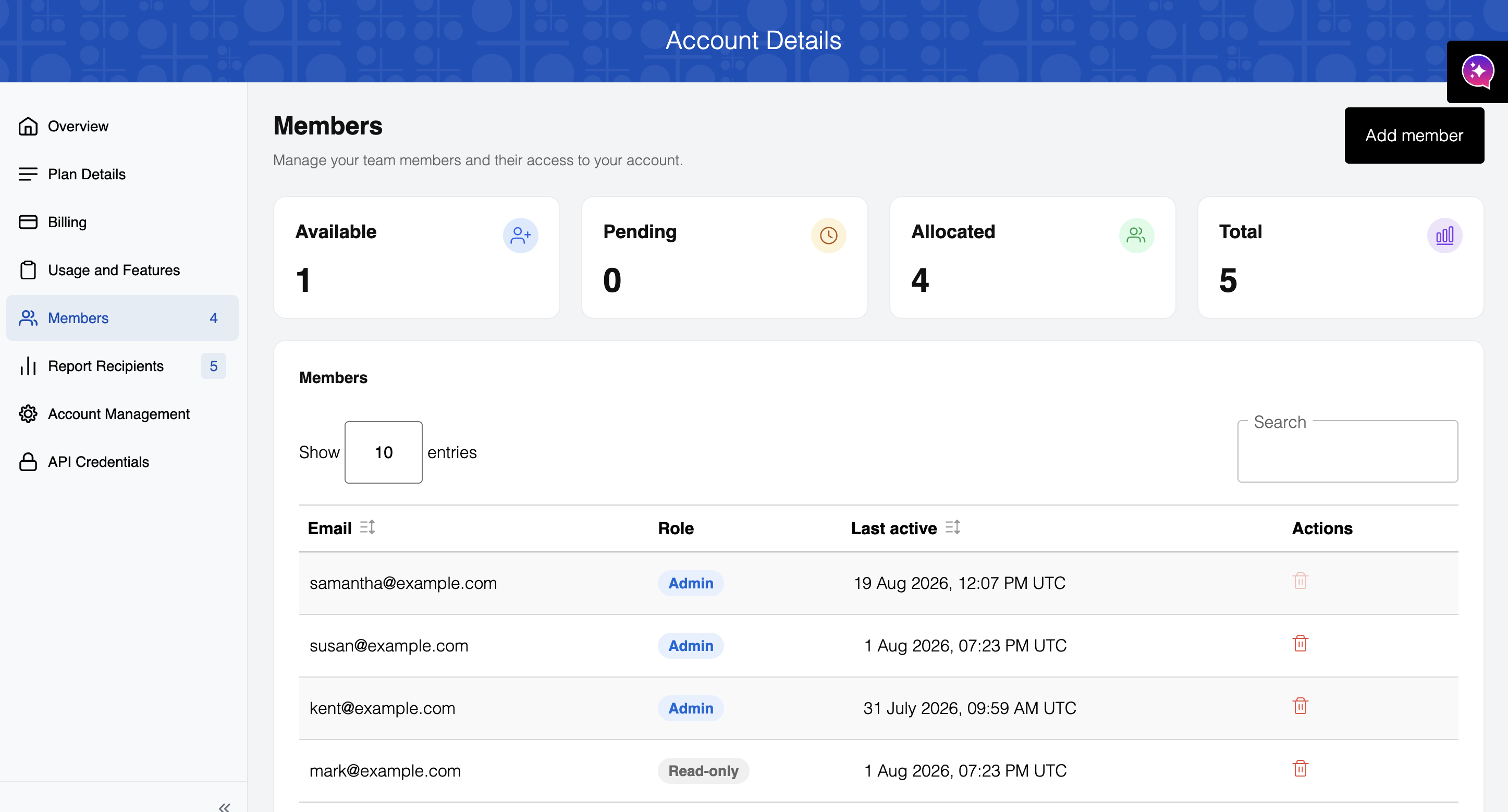
- Available: Open seats you haven't assigned yet
- Pending: Members you've invited who haven't logged in yet
- Allocated: Active members on your account
- Total: Your plan's total seat limit
The Members table shows each member's email, role, and last active date.
Roles
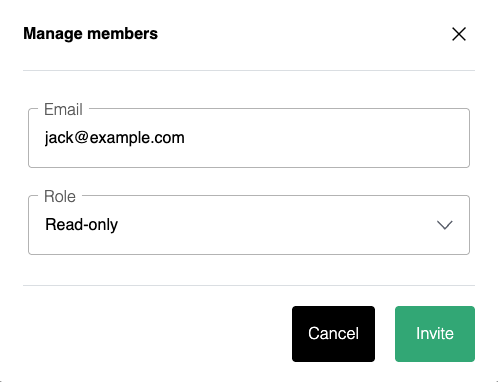
You can provide two types of access: Admin or Read-only.
Admin: Users with Admin access have full control over the PuzzleMe™ account. They can:
- Create, edit and delete puzzles and series
- Customize puzzle and series branding
- Access analytics
- Manage other users (add, remove, change permissions)
Read-only: Users with Read-only access have limited capabilities. They can:
- View puzzles and series
- Access analytics
Adding a member
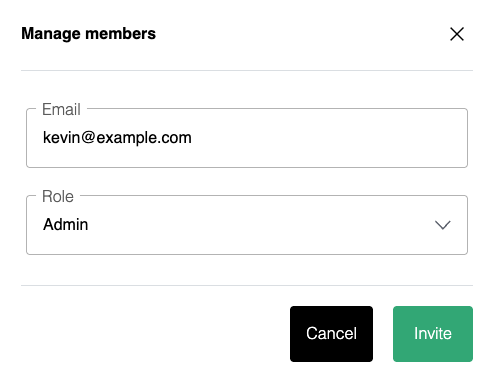
Click "Add member" to invite someone by email and assign their role.
Keep in mind that the number of members you can add depends on your plan:
- Personal plan: 1 user
- Plus plan: Up to 2 users
- Professional plan: Up to 5 users
- Enterprise plan: Up to 10 users
For more details about plan features and pricing, visit our pricing page or contact us.
It's essential that the email address be correct when inviting a member. If it's not, the person will not receive the invite. Only add the email the person will use to log in (e.g., john@example.com), not other emails they may use.
Anyone added will receive an email with a link to set up their account. This link may walk them through setting a password, or take them to the login page, where they can sign in with the invited email using Google, Microsoft, Yahoo, X/Twitter or Facebook.
Removing a member
Use the delete icon under Actions next to a member's row in the Members table to remove them.