Creating a Slide puzzle
Learn how to create a Slide puzzle on PuzzleMe.
Steps
- From your dashboard, click Create, then click New game, and select Slide.
- In the creator form, ensure the Content tab is selected.
- Enter a Game title and select the Game language.
- (Optional) Enter a Slug, a unique identifier used in the puzzle URL and embed code.
- In Slide options, choose a tile type and set Rows, Columns, and Empty slots.
- Click Create game.
Configuration
Tile type
Numbers uses numbered tiles on a plain background. This is the fastest setup.
For Image tiles, you can use either source:
- Image gallery: Choose from the PuzzleMe image gallery.
- Your own image: Paste an image URL or upload a file (up to 3 MB on supported plans). You can use almost any visual style that fits your goal, including photos, patterns, branded creatives, or quote graphics. See uploading media for plan details.
For image-based Slide puzzles, tiles are numbered by default. While solving, players can disable tile numbers from the in-game settings. Try disabling numbers in the demo below by clicking Settings.
Grid limits
| Setting | Min | Max |
|---|---|---|
| Rows | 2 | 6 |
| Columns | 2 | 6 |
| Empty slots | 1 | 4 |
Higher rows/columns and lower empty slots make the puzzle harder.
For image-based Slide puzzles, match the grid to the picture's shape. A 4x3 board works best with a 4:3 image. Gallery listings show each image's aspect ratio if you need it!
Smart Hint
Smart Hint for Slide doesn't just point at the answer. It solves the puzzle the way a person would, one step at a time, and explains why each move is made, so you can watch and learn.
It starts by working out the most human-intuitive way to solve the board, then moves through the tiles in order, tile 1, tile 2, and so on. For each tile, it shows the target position, then finds a path there.
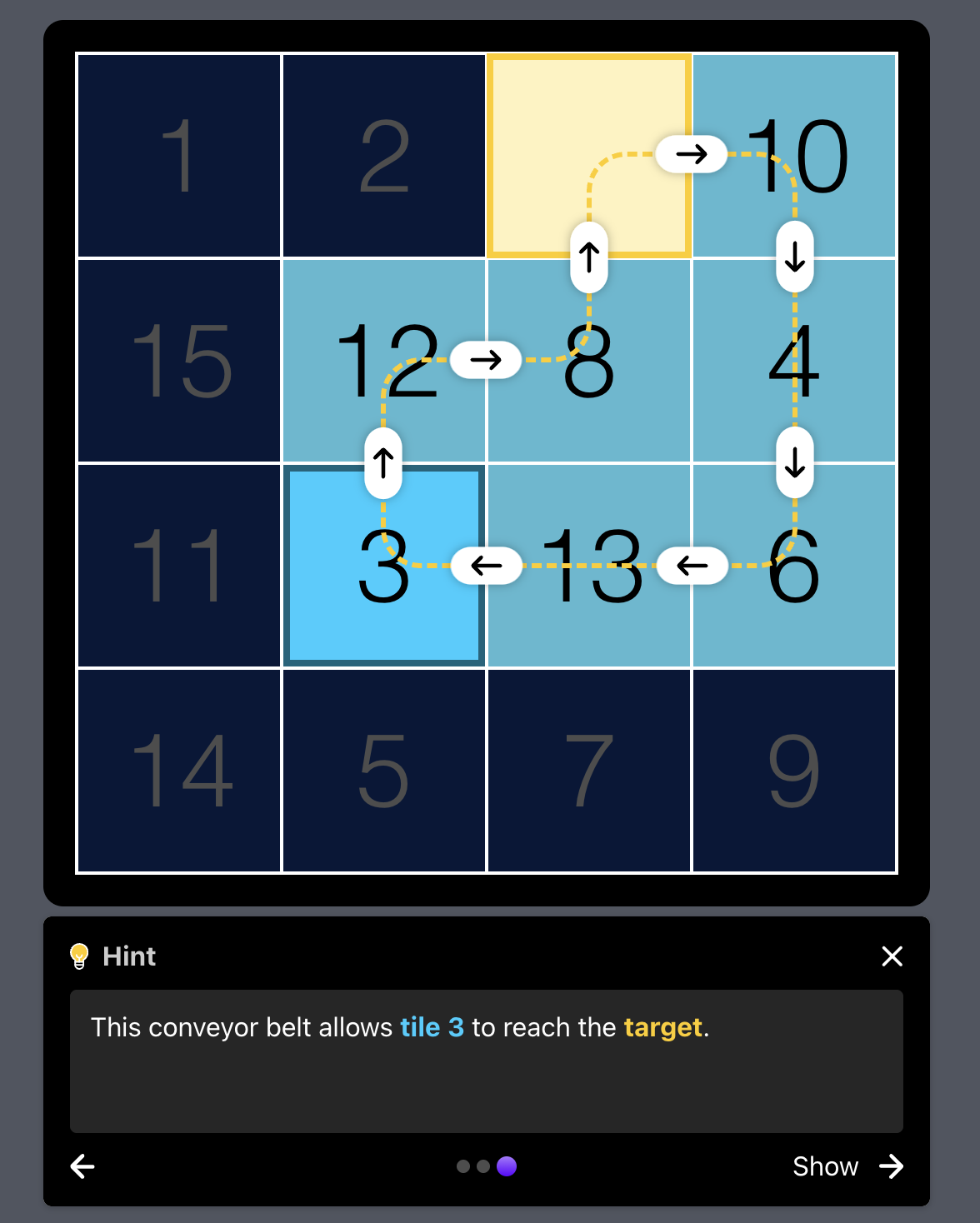
When other tiles block the way, it builds a conveyor belt: a sequence of moves where each blocking tile shifts aside in turn, clearing a route for the target tile. Arrows trace that route on the board before the moves happen.
The last two rows and last two columns don't work this way. With no row or column left beyond them, there's no room to place one tile without disturbing the next. So Smart Hint optimizes for those tiles instead of placing them one by one.
Because Smart Hint always follows this same logic, players who watch it enough times pick up the underlying strategy and can start solving boards on their own.