Messaging
The Start, Pause, and Completion experiences configured here can be overridden for individual puzzles. See series defaults for details.
Start experience
Start message editor
This setting allows you to define a default start message that will appear at the beginning of all your puzzles. By default, this message is left blank, giving you the flexibility to customize it based on your preferences or gameplay goals.
There are two ways to create or modify this message:
- WYSIWYG Editor: You can use our user-friendly "What You See Is What You Get" (WYSIWYG) HTML editor to visually format your message. This is ideal if you want to add images, videos, styled text, or links without writing any HTML code.
- Direct HTML Editing: If you're comfortable working with HTML, you can directly edit the underlying HTML content of the message. This option gives you more control and flexibility over the structure and styling.
You can easily switch between the WYSIWYG editor and HTML mode at any time using the "HTML mode" toggle. This makes it simple to combine visual editing with advanced customization, depending on your needs.
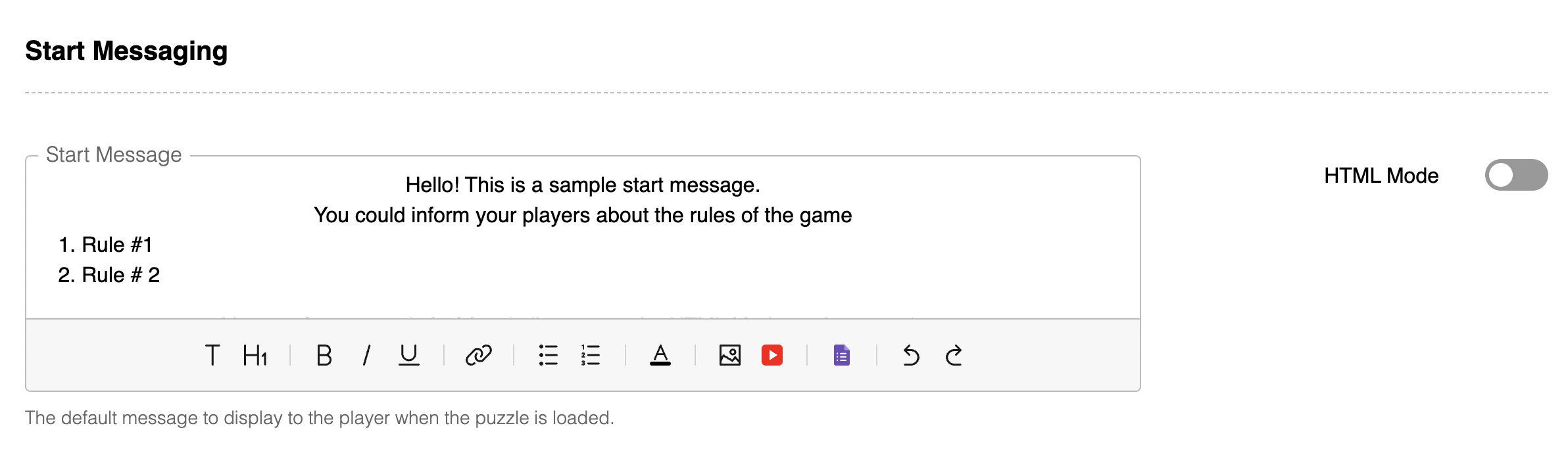
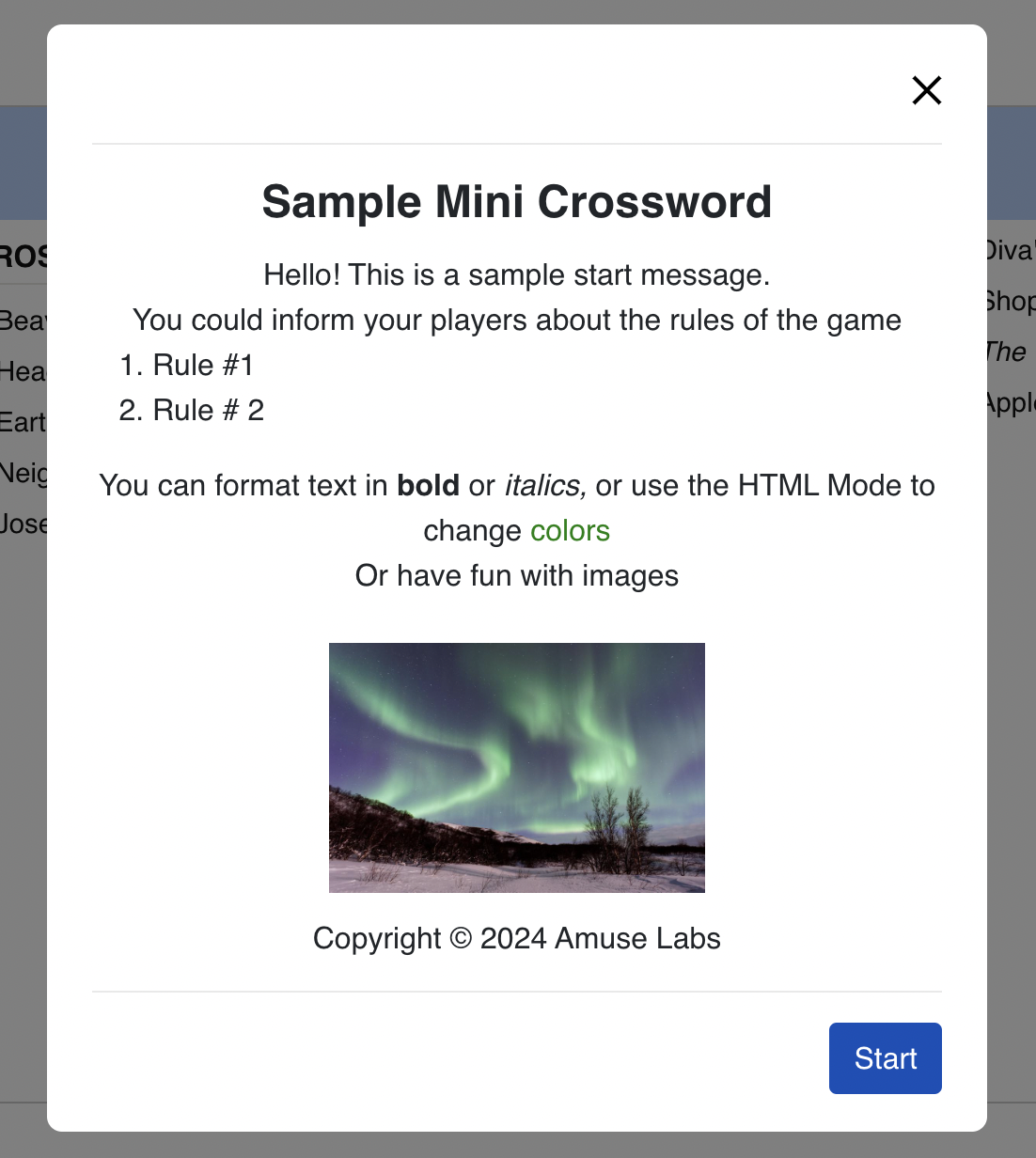
The start message appears at the beginning of every game and serves as an introduction or prompt for the player. This message can be fully customized to suit your needs—it can include text, images, GIFs, or even videos to create a more engaging experience. Whether you're setting the tone, providing instructions, or simply adding a visual element to enhance the game, the start message is a great way to capture the player's attention right from the beginning.
Show 'How to play' tab
This setting controls whether a "How to play" tab appears in the start pop-up alongside the start message.
When enabled, the tab displays game-specific help instructions when available, providing players with guidance on how to solve the puzzle type they're about to play.
Show standard pop-up
This setting allows you to show a simple start screen with just the puzzle title and start button.
When enabled, a standard pop-up appears instead of the full start message, providing a simpler, more streamlined start experience. Note that you must have a puzzle title set for this option to work properly.
This setting also prevents puzzles from auto-focusing when embedded on a page, requiring players to click "Start" before beginning. For more details about this behavior, see the Show standard pop-up section in the Messaging documentation.
Pause experience
Pause message editor
This setting allows you to define a default pause message that will appear when players pause a puzzle. By default, this message is left blank. You can customize it to keep players engaged and encourage them to return to complete the puzzle.
Similar to the start message, you can create or modify the pause message using:
- WYSIWYG Editor: Use the visual HTML editor to format your message with images, videos, styled text, or links without writing HTML code.
- Direct HTML Editing: Switch to HTML mode using the "HTML mode" toggle to directly edit the underlying HTML content for more control and flexibility.
The pause message appears when players click the pause button (timer icon) in the puzzle interface. This is a great opportunity to provide encouragement, share tips, or include engaging content that motivates players to return and finish the puzzle.
Leave this field empty if you don't want to show a pause message.
Completion experience
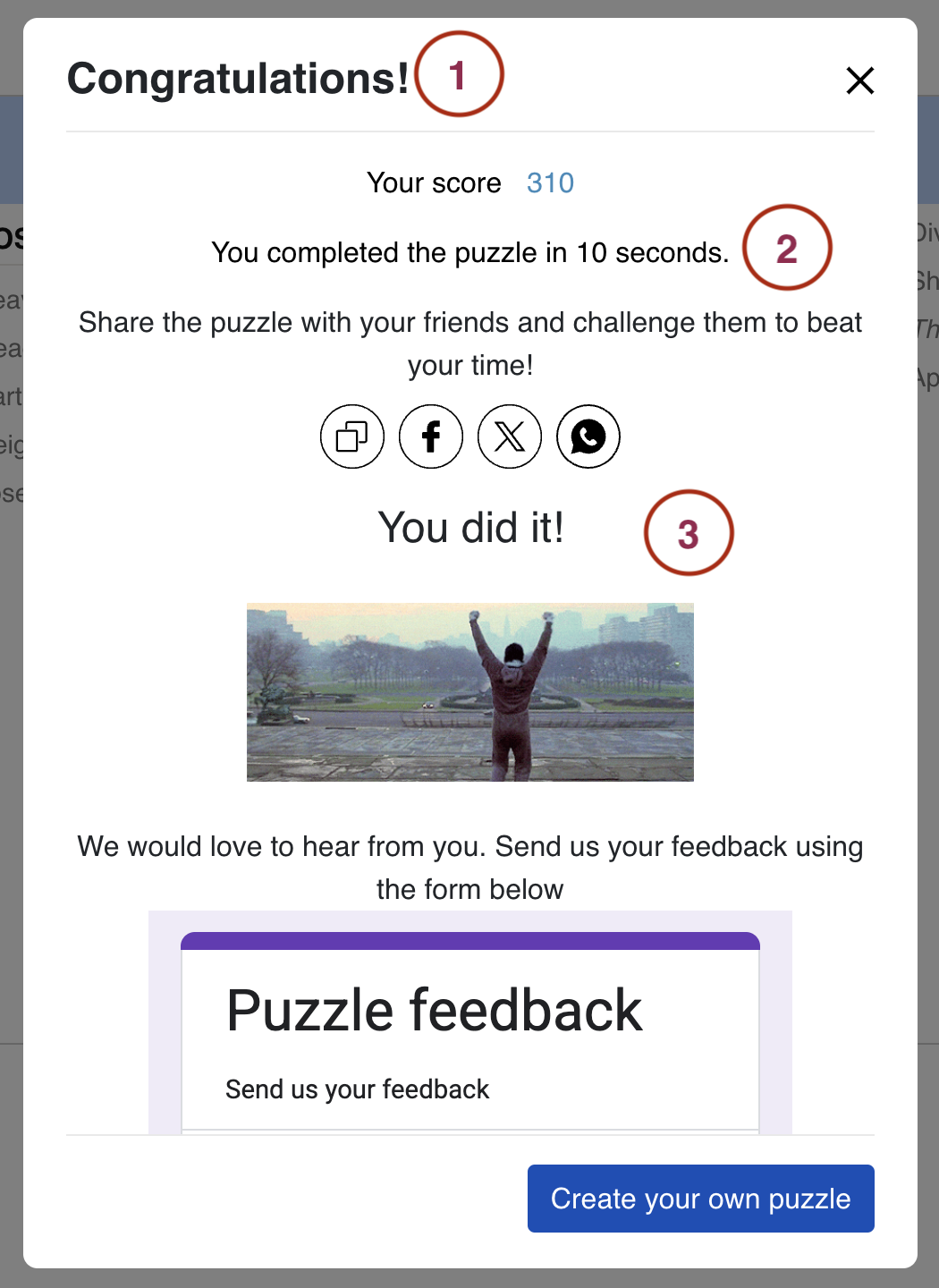
Completion pop-up title
The title of the completion pop-up appears at the top of the pop-up. This can be set separately for three puzzle groups:
- Quiz: Defaults to "Completed"
- WordroW: Defaults to "Completed"
- Rest (all other puzzle types): Defaults to "Congratulations!"
You can customize this text for each group, or leave it blank if you prefer the completion pop-up to have no title.

Subheader message
A short, one-line message shown below the header and graphic (if present) to highlight the moment. Leave this blank if you don't want a subheader.
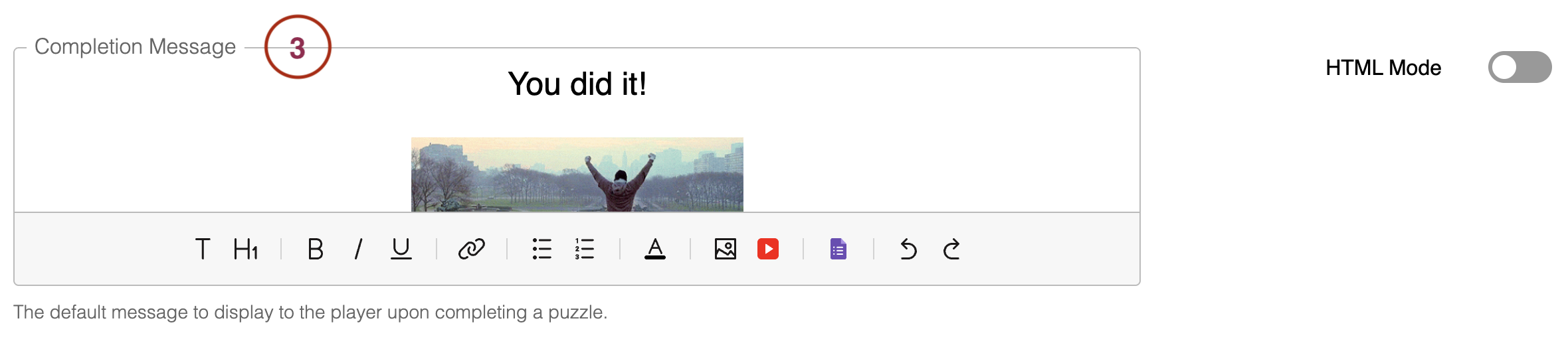
Completion message editor
The completion message offers editing options similar to the start message and is fully customizable to suit your needs. You can include a wide range of content—text, images, GIFs, videos, and even interactive elements like a Google Form to collect feedback from your players. This allows you to create an engaging end-screen experience. Additionally, you can include a link back to the games page, giving players the option to either replay the same puzzle or explore other available games. This helps maintain player engagement and encourages continued participation.
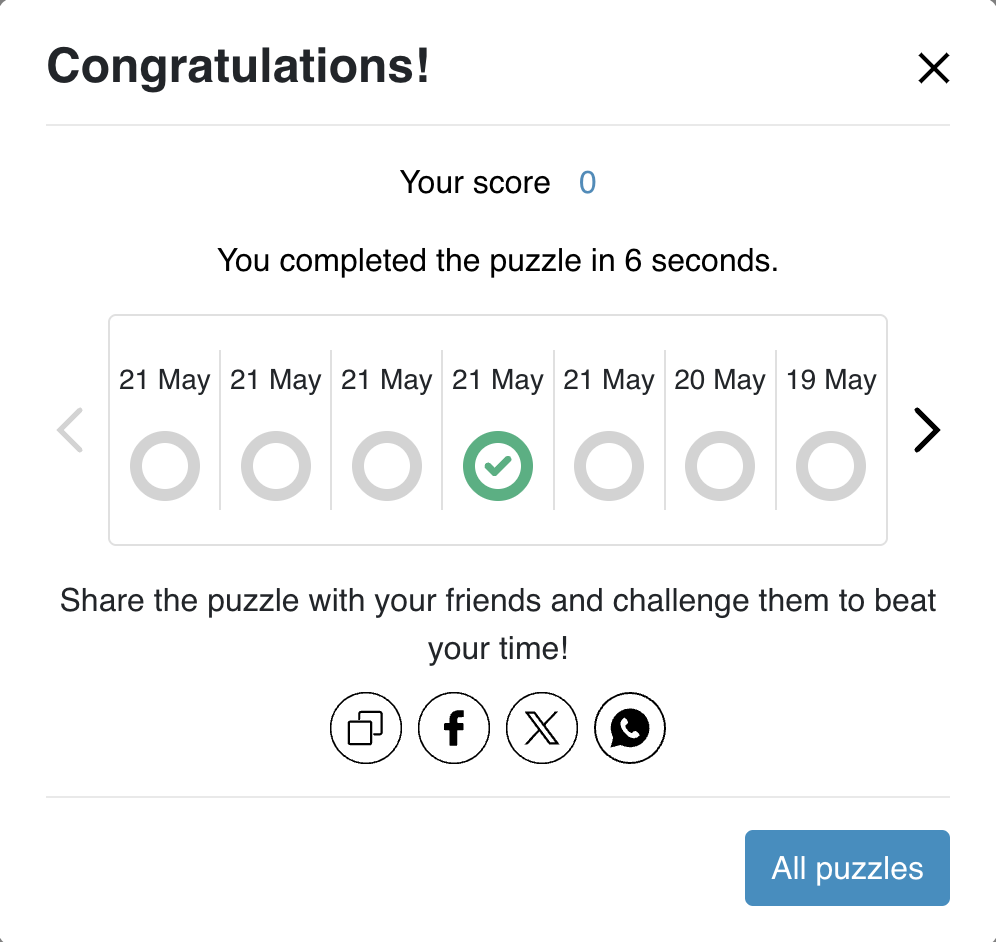
The elements described above—completion pop-up title, subheader message, and completion message—come together in the sample completion pop-up shown below. We encourage you to make full use of these features to craft a memorable experience that keeps your players coming back for more.
Show completion picker
By default, the completion picker is set to False. You can enable it by toggling the switch in your settings.

When enabled, this feature shows a picker in the completion pop-up, letting users click any game in the view to open it.
Completion sound
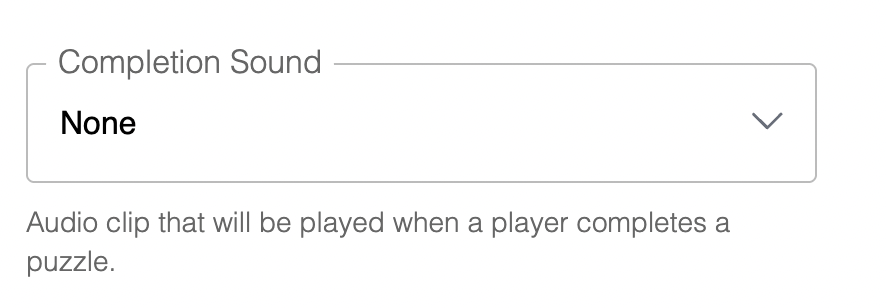
This setting lets you choose the default sound that plays when a puzzle is completed. By default, no sound is played. You can either select from a list of predefined sounds or provide a custom audio link to use your own sound.
An in-game sound setting lets solvers of your puzzle mute every audio cue, including completion sounds, correct and wrong sounds, jigsaw interactions like the scatter sound, social play chat, and timer warnings.
Completion animation
Choose a celebratory animation that displays when players successfully finish puzzles in your series. You can select from preset options or disable animations entirely.
When enabled, the selected animation will display on the entire screen when any puzzle in the series is completed successfully or when the player reveals the puzzle solution.
Completion animations are not displayed in contest mode.
Incorrect grid pop-up title and message
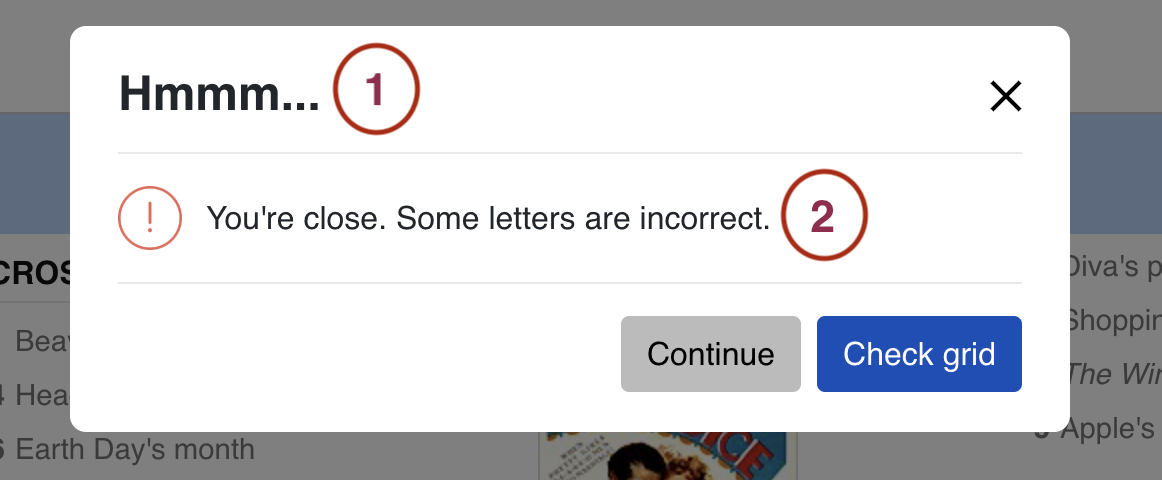
Upon completing a grid, if there are any incorrect entries, a pop-up appears indicating the errors. The player is then given the option to check the grid and correct their entries.
The title is shared across puzzle types, while the message can be set separately:
- Sudoku: Defaults to "You're close. Some entries are incorrect."
- Rest (Crossword, Kriss Kross, Codeword): Defaults to "You're close. Some letters are incorrect."
Both the title and messages can be customized to provide more specific feedback or instructions to players.

This is the pop-up corresponding to the fields mentioned above that a player sees once they have completed a game with any incorrect entries.
You can make the error message more helpful by providing specific instructions, such as "Please check your answers and try again" or "Some words don't match the clues. Double-check your spelling."