Sharing
Social sharing
By default, social sharing is turned off. You can enable it by toggling the switch in the settings.

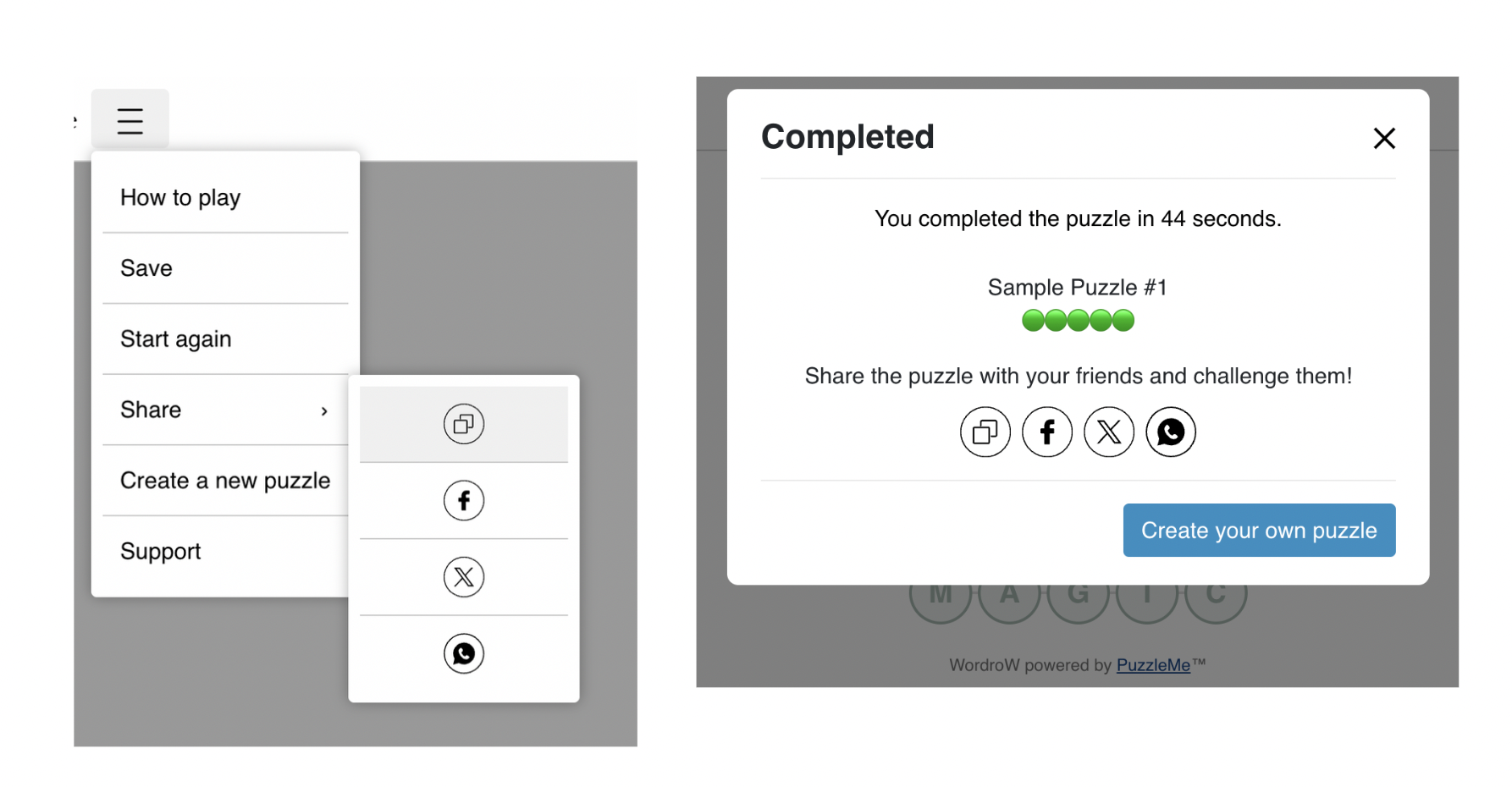
Once enabled, social sharing options (Copy to Clipboard, Facebook, X, and WhatsApp) will appear in two places: the hamburger menu and the end pop-up that appears after a user completes a puzzle. This allows users to easily share their progress or results on social media platforms, helping to spread the word and increase engagement.
X Handle and Bluesky Handle
These settings allow you to specify the X and Bluesky handles that will be mentioned in the social sharing message. When a user shares a puzzle via these platforms, the configured handles will be automatically included. Make sure to enter the full handle for each platform without any extra characters. For example, use @yourhandle for X and yourhandle.bsky.social for Bluesky.

Share Messaging
When the Social sharing setting is enabled, players can share puzzles and results on social media platforms. You can customize the default messages for these shares. There are four types of share messages you can edit:
| Message Type | When is it used? | Example Default | Example Preview |
|---|---|---|---|
| Share puzzle message | When a player shares a puzzle (with a social handle) | Play this [puzzle-type] made by [social-handle] at [puzzle-link] | Play this Jigsaw made by @AmuseLabs at https://link.to/the-puzzle |
| Share puzzle message (without handle) | When a player shares a puzzle and no social handle is provided (also used for WhatsApp) | Play this [puzzle-type] at [puzzle-link] | Play this Jigsaw at https://link.to/the-puzzle |
| Share results message | When a player shares their results (with a social handle) | I just solved this [puzzle-type] made by [social-handle] in [time-taken]. Can you beat my time? [emoji-grid][puzzle-link] | I just solved this Jigsaw made by @AmuseLabs in 7 minutes 5 seconds. Can you beat my time? 🟢🟢🟢🟢🟢 ⚫️🟢🟢🟢⚫️ 🟡🟡⚫️🟡⚫️ https://link.to/the-puzzle |
| Share results message (without handle) | When a player shares their results and no social handle is provided (also used for WhatsApp) | I just solved this [puzzle-type] in [time-taken]. Can you beat my time? [puzzle-link] | I just solved this Jigsaw in 7 minutes 5 seconds. Can you beat my time? https://link.to/the-puzzle |
Placeholders
You can customize the message text as you like. To include puzzle details (like puzzle type, handle, link, etc.), use special placeholders in your messages. These placeholders will be replaced with the actual puzzle details when a player shares. If you want to keep these details, make sure to leave the placeholders in your message.
[puzzle-type]: The type of puzzle (e.g., Jigsaw, Crossword)[social-handle]: The creator's social handle (if available)[puzzle-link]: The link to the puzzle[time-taken]: The time taken to solve the puzzle[emoji-grid]: A visual representation of the player's performance (for supported puzzle types)
- Placeholders will only work in messages where they are valid. If you use a placeholder that is not valid for a particular game, it will not render properly—in the preview, you will see the placeholder as plain text instead of the respective details.
- If you accidentally delete a placeholder, you can use the Reset button to restore the default message with all placeholders.
Editing Share Messages
Locate the Sharing section In the series settings, scroll to the Sharing section and expand it.
Locate the message fields You'll see four fields for customizing the different types of share messages (see table above for details).
Edit the text Enter your custom message in each field. Use placeholders like
[puzzle-type],[social-handle],[puzzle-link],[time-taken], and[emoji-grid]to automatically include puzzle details. If your message is too long, a warning will appear as you approach the character limit.As you type, the Preview section updates in real time to show how your message will appear to players.
The video below demonstrates how the preview updates as you edit your message:
Editing social share messages Save your changes When you're happy with your messages, click Save.
Make sure to enable Social sharing above to be able to share and see the messages.
Best Practices
- Keep messages short and engaging.
- Use placeholders to personalize each share.
- Test your messages by sharing a puzzle/result to see how they appear on different platforms.